4.4.1 Personal account management
When Profile > Account Management > Personal account management is selected, the following personal account management list page is brought up: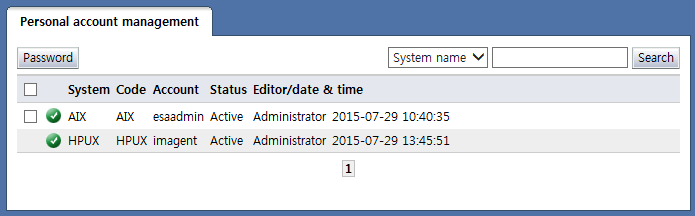
<Personal account management list>
A list of accounts assigned to the user is displayed in personal account management. The items in the list are described below.
Checkbox: When the checkbox is selected, and the "Password" button is clicked, a page where the password for the account can be changed is brought up. Items where a checkbox is not shown are systems where the password is synced to be identical to the IM password.
System: Displays the name of the system that owns the personal account
Account: The personal account name is displayed. When the account name is selected, the View account details screen is brought up.
Status: Displays the status of the personal account. The following are the types of account:
Active: The account is enabled and can be used
Inactive: The account is disabled and cannot be used
Disabled-Initial standby: The account has not been enabled after creation. When the password is changed, the account becomes enabled.
Disabled-Password expired: The account has been disabled because the password usage period has expired.
Editor/date&time: Shows the user who changed the account info and the date & time of change
Change personal account password
When the account whose password will be changed is selected from the personal accounts list, and the "Password" button is clicked, the Change account password screen is brought up.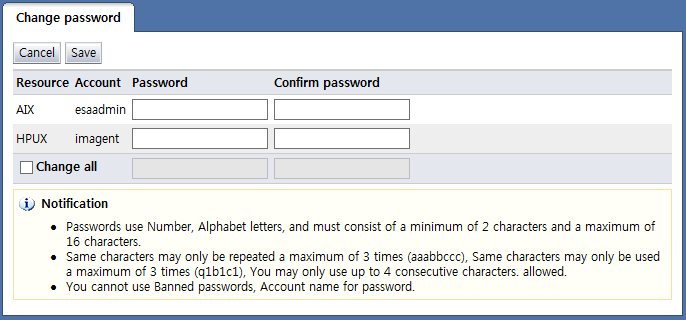
<Change personal account password>
Enter the password to be changed in the respective password fields and click the "Save" button to change the password. Here, to change the passwords of all accounts to the same password, select "Change all". When a password is entered in the change all item, the password for all accounts shown can be changed to the same password.
View personal account details
When the account name is selected from the personal accounts list, the following View account details screen is brought up: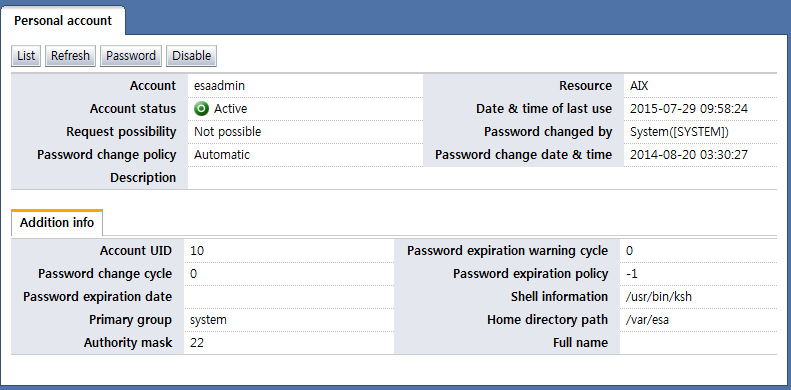
<Detailed personal account info>
The items on the view account details screen are described below.
Account: Displays the account name
Resource: Displays the system name
Account status: Displays the status of the account
Date & time of last use: Displays the date & time the account was last used. This is displayed only when the data is synced in access control.
Request possibility: Indicates whether an account can be requested
Password changed by: Displays info on the last user to change the password
Password change policy: Shows the password change policy of the account
Automatic: Admins and individual users can change passwords, but the password can be changed automatically using scheduled tasks.
Edit: Only admins or individual users can change passwords.
Password change date & time: Displays the date & time of password change
Description: Displays the account description
Descriptions for additional account info will be omitted, since additional info varies for OS/DBMS/Network tool.
The buttons on the View personal account details screen are described below.
List: Brings up the Personal account list screen
Refresh: Refreshes detailed personal account info
Password: Brings up a page where the personal account password can be changed
Inactive: Disables a personal account