4.1.2.1 _Common_
A common screen UI is provided for all request forms.
Common screen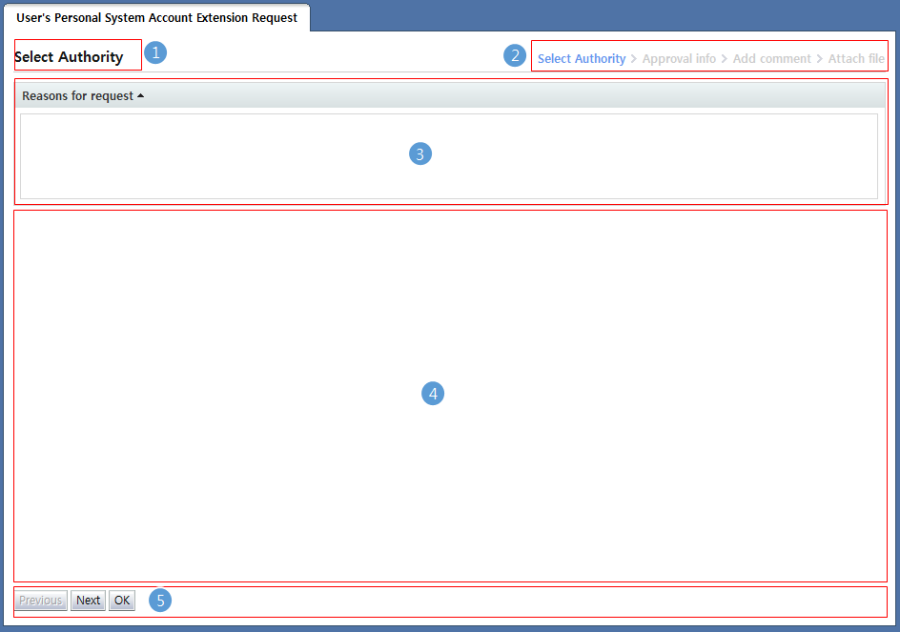
<Enter request info step>
1. Display the name of the current step.
2. Display the request step and the current step.
3. Enter the reasons for request. The reasons for request must be entered to proceed to the next step.
4. The input form required to request each document is displayed.
5. Buttons to move to the previous and next steps are displayed. When input of request info is complete, the "OK" button is enabled.
Approval info
When input of request info is completed, the following screen for approval stages and approval info designation is displayed: This screen for approver designation is shown only when the approval stages type is default or manual approval.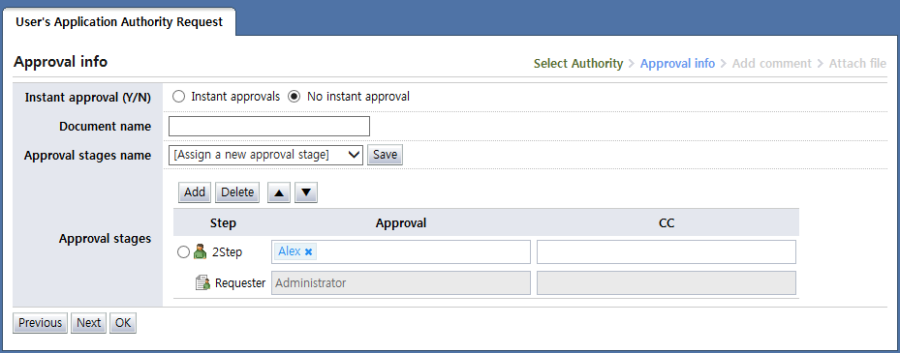
<Approval info>
Each of the items is described below.
Instant approval (Y/N): Determine whether prior requester approval will be given in the approval process. If No instant approval is selected for instant approval in the form, this item is not displayed.
Document name: Set the name of a request document. Although the document name is automatically set through settings, the requester can also enter the name manually.
Approval stages name: Set the approval stages by selecting from the previously used approval stages.
If the "[Assign a new approval stage]" item is selected, the following popup for entering the approval stage name is displayed (the currently assigned approval stage can be saved):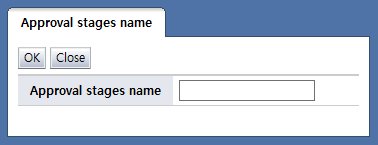
<New approval stage name popup>
When an existing approval stage is selected, and the "Save" button is clicked, the selected existing approval stage is changed with the current info.
Approval stages: Assign an approval stage.
Each of the items is described below.
Step: Displays the current approval step. Select the radio box and click the "Delete" button to delete the selected step. By selecting the ▲, ▼ buttons, the selected item can be moved up or down.
Approval: Set the approver. When the input text box is clicked, the following select user popup is displayed: Multiple approvers can be designated. In this case, even if only one of the approvers for the step gives approval, the approval process proceeds to the next step.
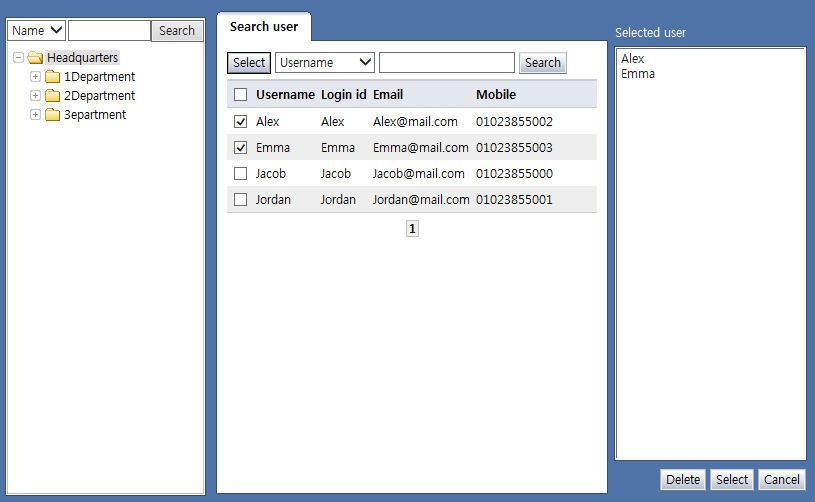
<Select approver popup>
Cc: Set Ccs. When the input text box is clicked, the following user selection popup is displayed, and the selected users are displayed in the input text box: Ccs only have read authority for approval requests; they cannot approve or return approval requests.
Instant Approval: Set whether the approver for the step can use instant approval. If instant approval is set to Don't use in the form, this option is not displayed.
Modify approval stages: Set whether the approver for the current step can edit the approvers for the next step.
Add attachment: Set whether the approver for the step can attach files.
Delete attachment: Set whether the approver for the step can delete attached files.
Add comment: Set whether the approver for the step can add comments.
Delete comment: Set whether the approver for the step can delete attached comments.
The buttons are explained below.
Add: Adds an approval step
Delete: Deletes the selected approval step
▲ : Moves the selected approval step up
▼ : Moves the selected approval step down
Add comment
The add comment step is a step for the requester to enter additional comments when making a request. If the comment screen is set to Do not use in the form, the add comment screen is not displayed.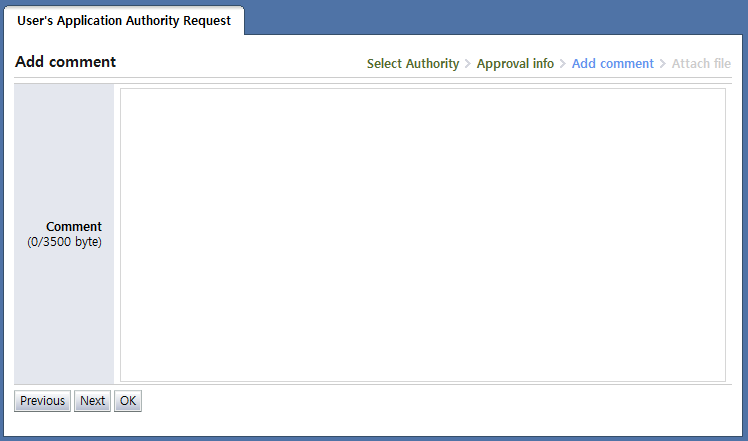
<Add comment>
Attach file
The attach file step is a step wherein the requester attaches files for reference to the approval. When the Attach files screen is set to Do not use in the form, the Attach file screen is not displayed.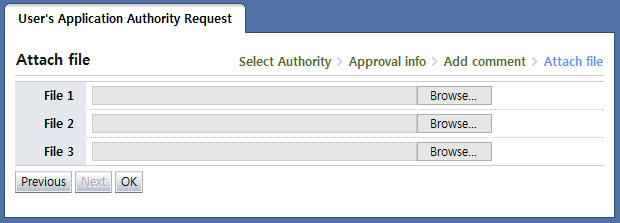
<Attach file>