4.1.2.4 _Application owned authorities - Revoke_Extend_
When User's Application Authority Revoking Request, User's Application Authority Extension Request, Delegated Application Authority Revoking Request document, or Delegated Application Authority Extension Request form is selected, owned authorities can be viewed as shown in the following: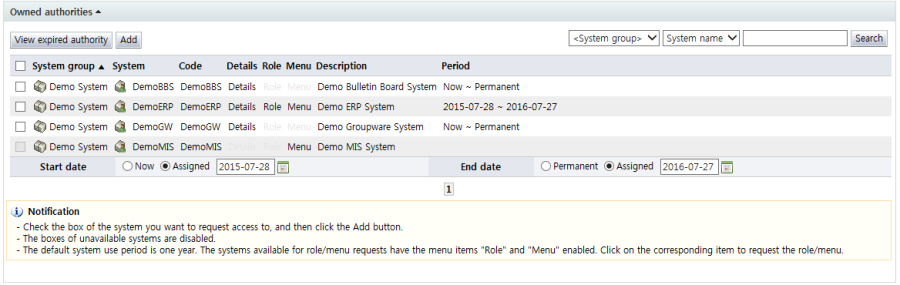
Each of the items is described below.
Checkbox: Select the checkbox and click the "Add" button to select the system (resource) authority as an authority whose revocation or extension is requested.
If the checkbox is disabled, the system (resource) authority is an authority whose revocation or extension cannot be requested.
In the case of authority extension, the start date and end date for the extension request must be designated below the list. (Start date and end date are shown only in the case of extension requests.)
System group: Displays the system group of the system (resource) where the authority exists
System: Displays the name of the system (resource) where the authority exists
Code Displays the code of the system (resource) where the authority exists
Details: If the authority owned by the user is a resource authority, the "Details" item is enabled. When the "Details" item is selected, a screen where detailed information on resource authorities can be viewed is brought up.
Role: If the user has role authorities in the system, the "Role" item is enabled. When the "Role" item is selected, a screen where the roles of the user in the system can be viewed is brought up.
Menu: If the user has menu authorities in the system, the "Menu" item is enabled. When the "Menu" item is selected, a screen where the menus of the user in the system can be viewed is brought up.
Description: Displays a description of the system
Period: Displays the usage period for the system (resource) authority
The buttons are explained below.
View expired authority: Brings up a screen where all expired authorities can be viewed at once, regardless of the authority type of the user
Add: Adds the authority selected with the checkbox as an "Authority to request"
Search: Searches items corresponding to the conditions entered
When the enabled "Details" item is selected, the following screen is brought up:
<System authority details>
If the authority assigned to the user is a resource authority, the "Details" item is enabled. Here, the usage period, request date, approved date, etc., of resources can be viewed.
When the "List" button is selected, the list of owned authorities is brought up.
In the owned authorities list, when an enabled "Role" item is selected, the following info on menus that can be extended/revoked in the resource is displayed: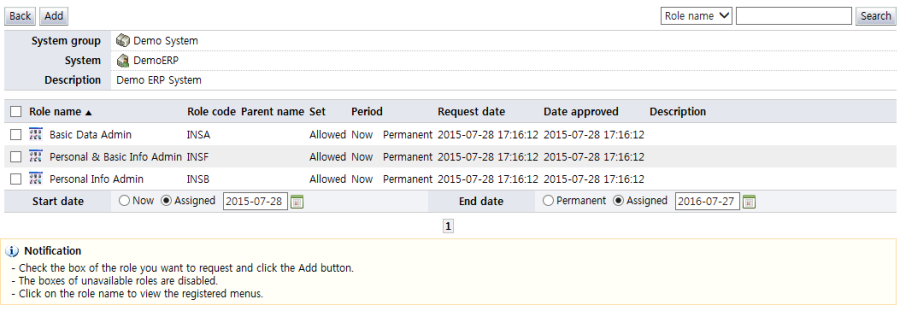
<Owned authorities - Extend/Revoke>
In the Role item, a list of roles in a particular system assigned to the user is displayed. On top of the list, info on the system that has the roles is displayed. The items in the roles list are described below.
Checkbox: Select the checkbox and click the "Add" button to select the role authority as an authority whose revocation or extension is requested.
If the checkbox is disabled, the role authority is an authority whose revocation or extension cannot be requested.
In the case of authority extension, the start date and end date for the extension request must be designated below the list. (Start date and end date are shown only in the case of extension requests.)
Role name: Displays the names of the roles owned by the user
Rold code: Displays the role codes owned by the user
Parent name: Displays the parent name of the role
Set: Indicates whether the authority assigned to the user is allowed or deny. If deny is indicated, the authority cannot be used.
Period: Displays the usage period of the assigned role
Request date: Displays the request date of the role
Date approved: Displays the approved date of use of the role
Description: Displays a description of the role
The buttons are explained below.
List: Brings up the system list screen
Add: Adds the authority selected with the checkbox as an "Authority to request"
Search: Searches items corresponding to the conditions entered
In the owned authorities list, when an enabled "Menu" item is selected, the following info on menus that can be extended/revoked in the resource is displayed: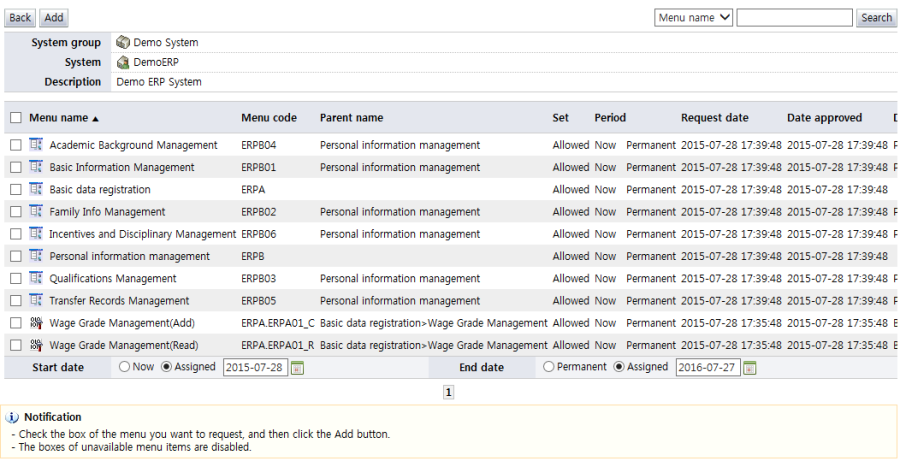
<Owned menus - Extend/Revoke>
In the menu item, a list of menus in a particular system assigned to the user is displayed. On top of the list, info on the system that has the menus is displayed. The items in the menu list are described below.
Checkbox: Select the checkbox and click the "Add" button to select the menu authority as an authority whose revocation or extension is requested.
If the checkbox is disabled, the role authority is an authority whose revocation or extension cannot be requested.
In the case of authority extension, the start date and end date for the extension request must be designated below the list. (Start date and end date are shown only in the case of extension requests.)
Menu name: Displays the names of the menus owned by the user. The icons signify the following:
 : If the menu type is action
 : If the menu type is normal menu
Menu code: Displays the menu codes owned by the user
Parent name: Displays the parent name of the menu
Period: Displays the usage period of the assigned menu
Request date: Displays the request date of the menu
Date approved: Displays the approved date of use of the menu
Set: Indicates whether the authority assigned to the user is allowed or deny. If deny is indicated, the authority cannot be used.
Menu type: Displays the action type of the menu
Description: Displays a description of the menu
In the owned authorities list, clicking the "Expired authority" button allows viewing of all authorities whose usage period has expired at once. The following is the screen that is brought up when the "Expired authority" button is clicked: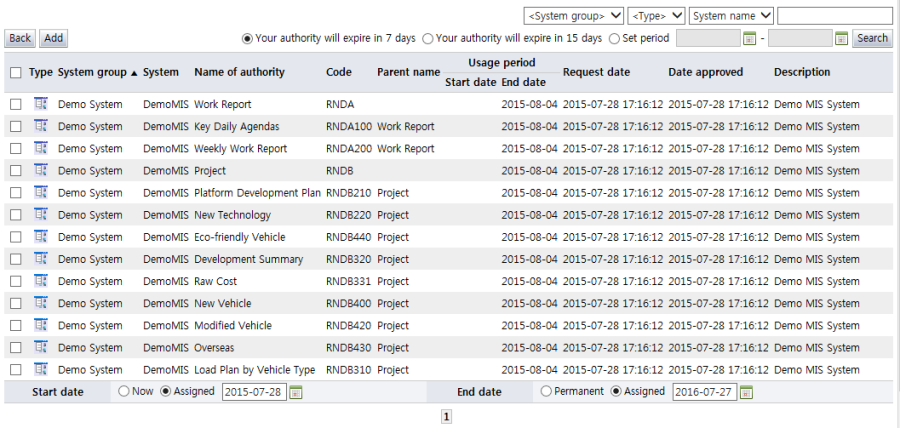
<View expired authority>
The list shown when the "Expired authority" button is clicked displays "Your authority will expire in 7 days" by default. When "Your authority will expire in 15 days" is selected, authorities that expire after 15 days are shown. By setting the period, authorities that expire after the specified period can be viewed. In expired authorities, all authorities can be viewed at once regardless of the authority type. When the checkbox of an authority that is shown is selected, and the "Add" button is clicked, the authority is selected as an authority whose extension/revocation is requested.
Each of the items is described below.
Checkbox: Select the checkbox and click the "Add" button to select the authority as an authority whose revocation or extension is requested.
If the checkbox is disabled, the authority is an authority whose revocation or extension cannot be requested.
In the case of authority extension, the start date and end date for the extension request must be designated below the list. (Start date and end date are shown only in the case of extension requests.)
Type: Displays the authority type
: System (resource)
: Role
: Menu
System group: Displays the system group of the system that owns the expired authorities
System: Displays the name of the system that owns the expired authority
Name of authority: Displays the name of the expired authority. If the expired authority is a resource, the system name is displayed.
Code: Displays the code of the expired authority
Parent name: If the expired authority is a role or a menu, the parent name is displayed.
Usage period: Displays the usage period of the authority
Request date: Displays the date & time the authority was requested
Date approved: Displays the date & time the authority was approved
Description: Displays a description of the authority