4.3.1.3 Requests in progress
Among the documents requested by the user, those that are currently in progress are displayed. When Approval management > Approval processing > Requests in progress is clicked, the following screen is brought up: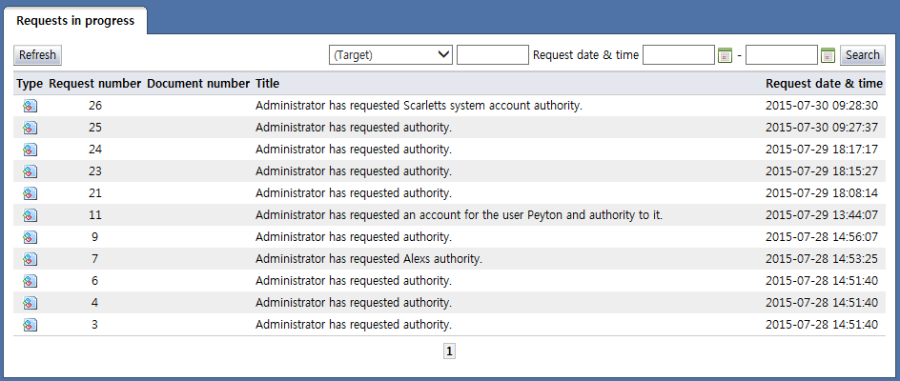
<Requests in progress list>
On the view requests in progress page, the documents that are currently in progress, among those requested by the requesters, can be viewed. The items in the requests in progress list are described below.
Type: Displays the document type.
 : Requested documents (default document)
-
: Sent and received documents
Request number: Displays the request number of the document
Document number: Displays the document number When the document number is clicked, the document details page is brought up.
Title: Displays the document title. When the title of a document is clicked, the document details page is brought up.
Requester info: Displays requester info
Request date & time: Displays the request date & time
By clicking the buttons on the top of the view requests in progress list page, the following tasks can be performed:
Refresh: Displays the latest list of requests in progress
Search: Within the designated search range, a search is performed using the value given in search attributes.
Search target
Title: Search for documents whose title includes a word.
Document number: Search for document numbers that include the search word.
Request number: Search for request numbers that include the search word.
Request date & time: Search for documents requested in the designated period.
If the title or document number of a request in progress is selected, the following screen is brought up, and the document details can be viewed: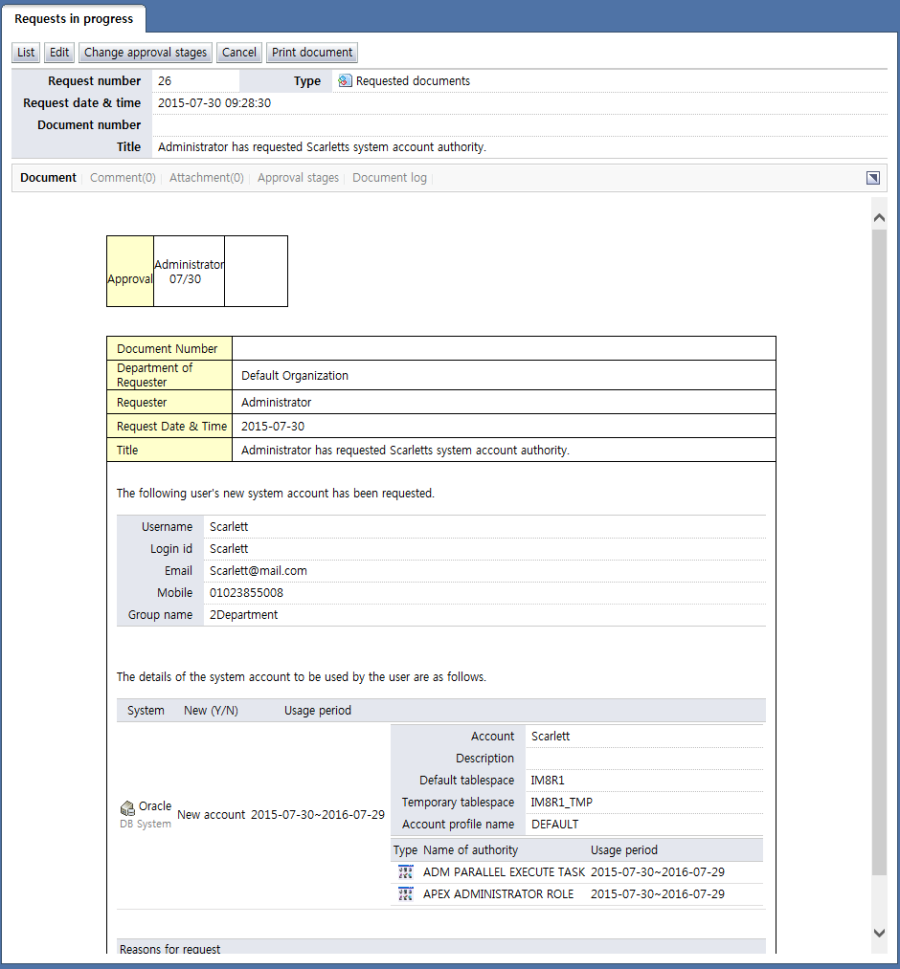
<View request in progress details>
The attribute items of requests in progress are described below.
Type: Displays the document type.
-
: Requested documents (default document)
-
: Sent and received documents
Requester: Displays requester info
Request date & time: Displays the request date & time
Document number: Displays the document number
Title: Displays the document title.
The menus associated with the document are explained below.
Document: Displays the content of the approval requests
Comment: Displays the comments attached to the document
<Comments list>Attachment: Displays the files attached to the document. When the title of an attachment is selected, the file can be downloaded.
<Attachments list>Approval stages: Displays the status of the current approval stage in progress for the document.
<Approval stage>Document log: Displays the log of the document.
<Document log>
By clicking the manage button on top of the approval requests, the following tasks can be performed:
List: Brings up the view approval requests list page
Edit: Edits a standby document that has not yet been approved by the approver of the next step (If the approver of the next step has held, approved, or returned the document, the Edit button is not shown.)
Change approval stages: Edits the approval stages of a standby document that has not yet been approved by the approver of the next step (If the approver of the next step has held, approved, or returned the document, the Modify approval stages button is not shown.)
Cancel: Cancels the submission of a standby document that has not yet been approved by the approver of the next step (If the approver of the next step has held, approved, or returned the document, the "Cancel" button is not shown.)
Print document: The content of the approval requests is printed.