4.3.4 Approval stages management
Approval stages management is a function provided for the designation of frequently used approval stages so that they can be used conveniently for requests. In Approval management, click Approval stages management to display the following screen: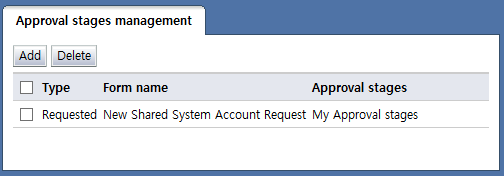
<Approval stages list>
In the approval stages management list, approval stages can be viewed. Approval stages can be added, or existing approval stages can be deleted. The items in the approval stages list are described below.
Type: Displays the document type of the approval stage
Requested
Sent and received documents
Form name: Displays the name of the form using the approval stage
Approval stages: Displays the name of the approval stage. When an approval stage name is clicked, the view approval stage details page is brought up.
By clicking the buttons on top of approval stages management, the following tasks can be performed:
Add: Brings up a page where approval stages can be added
Delete: Deletes the selected approval stages
The following screen is displayed when the "Add" button is clicked: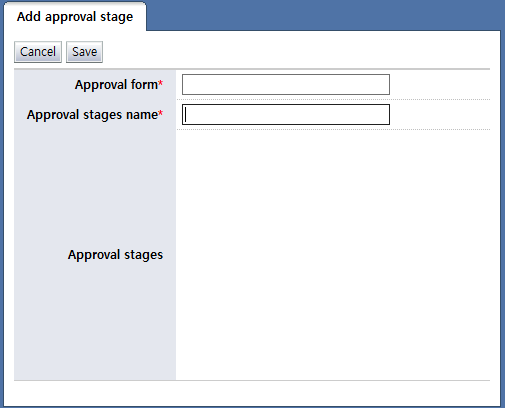
<Add approval stages>
Approval stages name: Enter the name of the approval stage to be used.
Approval form: When the text box of the approval form is clicked, the following popup is displayed:
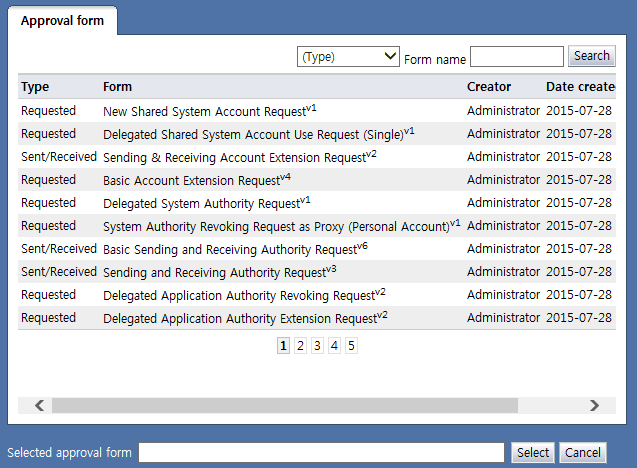
<Select approval stage form> Select the approval form for which approval stages are to be designated. When selected, the form is displayed so that approval stages can be designated in the approval stages item.Approval stages: When selected in the approval form item, the form is displayed so that approval stages can be assigned as shown below.
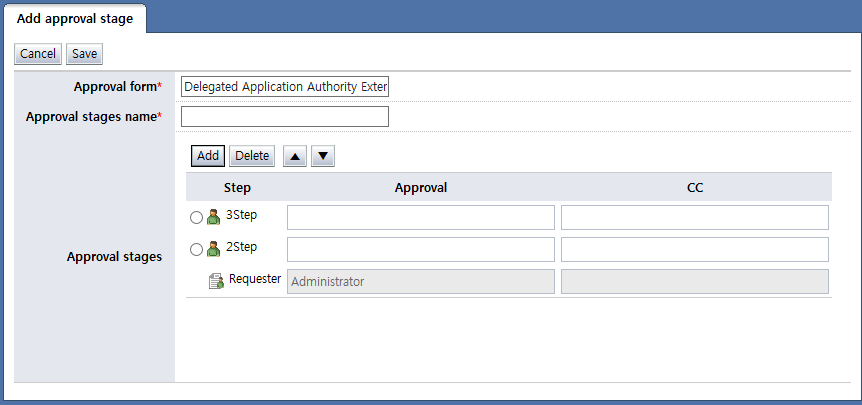
<Assign approval stages>
Designate approvers for each stage and set approval authorities and document authorities for each approver.
Step: Displays the approval step
Select the radio button and click the "Delete" button to delete the selected step.
Select the radio button and click the "▲" button to move the step up by one notch.
Select the radio button and click the "▼" button to move the step down by one notch.
Approval: Select the approver. Multiple users can be chosen as approvers.
Cc: Select Ccs. Multiple users can be chosen as Ccs.
Approval authority
General: Used for processing general approvals.
Instant Approval: Set whether the approver can use instant approval.
Document authority
Modify approval stages: Set whether the approver can change the approval stages when approving a document.
Modify document: Set whether the approver can modify the document when approving.
Add attachment: Set whether the approver can attach files when approving.
Delete attachment: Set whether the approver can delete attached files when approving.
Add comment: Set whether the approver can add comments when approving.
Delete comment: Set whether the approver can delete attached comments when approving.
When an approval stage name is clicked from the approval stages list, the approval stage details can be viewed on the screen shown below.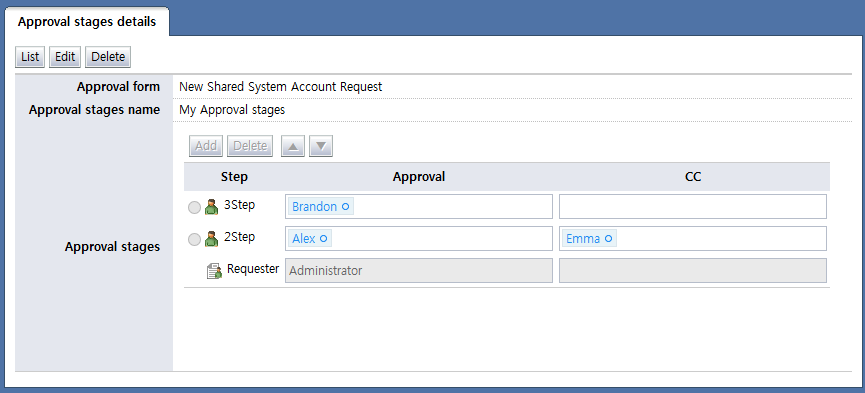
<View approval stage details>
By clicking the buttons on top of the approval stages details, the following tasks can be performed:
List: Brings up the approval stages list
Edit: Brings up a page where approval stages can be edited. The following screen is displayed, and the approval stages info can be edited:
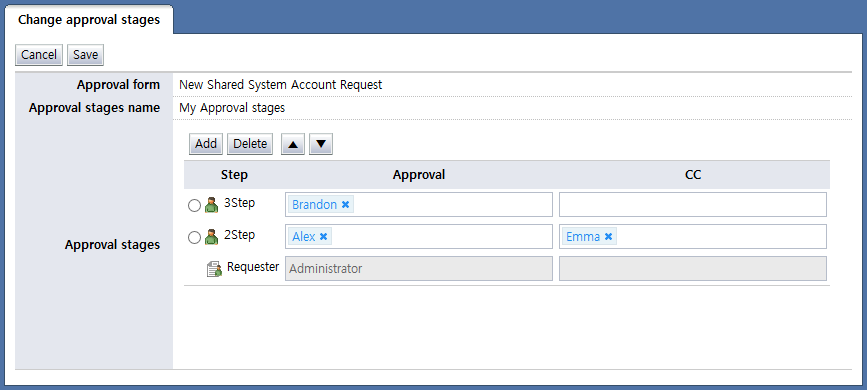
<Modify approval stages>Delete: Deletes the currently viewed approval stage