4.1.2.8 _Multiple user selection_
The screen for users to be requested is as follows:
<Select user>
To add a user, click the "Add" button and select the users to be requested on the user selection popup that appears.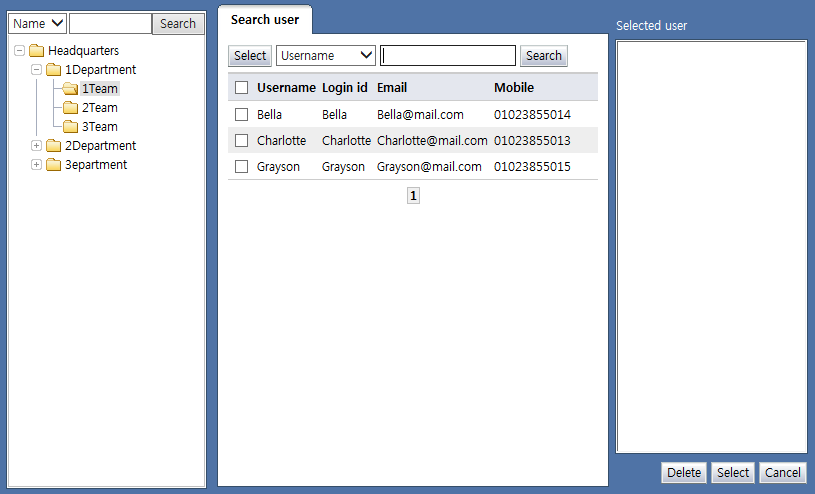
<Select user popup screen>
Click a user name or select the checkbox of a user to be added. Then, click the "Select" button to display the selected users in the "Selected user" list on the right. Verify these users and click the "Select" button on the bottom to add users as shown below.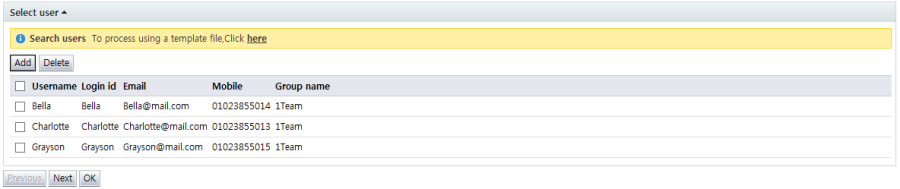
<Users to be deleted>
To exclude users among the added users, select the checkbox and click the "Delete" button.
As shown above, requests can be made by selecting users manually. Bulk user requests can be made by filling in user names in an Excel file.
To request users using files, click "Here" to bring up a screen for file registration.
<Deleting users using Excel files>
A template file can be downloaded from this screen, and info on users to be requested can be entered in the template file. When a template file is downloaded, the following can be viewed: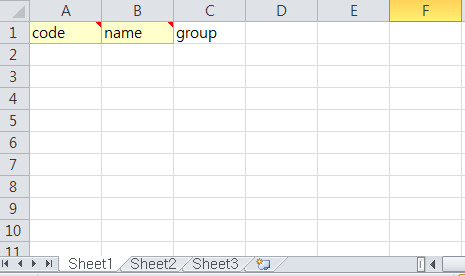
<Template file>
Enter user info corresponding to the first row of each column in the Excel file, beginning with the second row. The following info must be entered:
code: Enter the code of the user to be requested. This is a required value.
name: Enter the user name corresponding to the user code entered. This is a required value.
group: Enter the name of the member group of the user. This value is optional.
To validate the user info entered, click the "Reconciliation" button. If invalid user info exists, the following popup screen is displayed: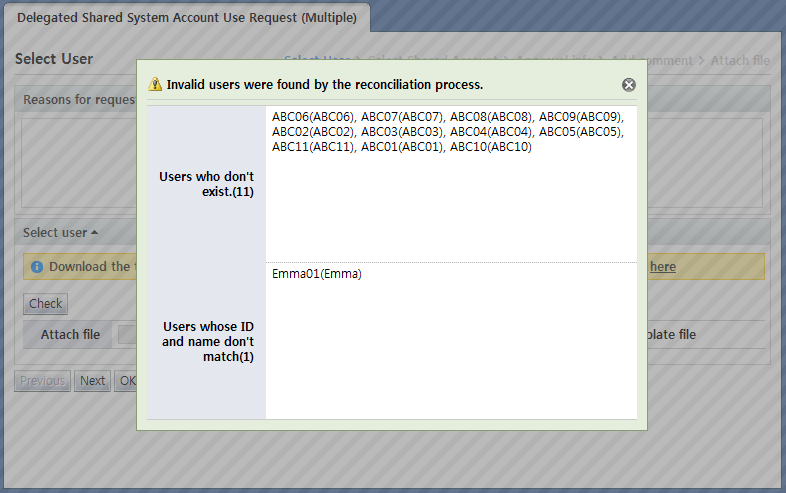
<Invalid user>
If reconciliation has failed, check the Excel file contents. If reconciliation fails, the process cannot proceed to the next step.