4.1.2.7 _System owned authorities - Revoke_Extend_
When User's System Authority Revoking Request (Personal account), User's Application Authority Extension Request, Delegated Application Authority Revoking Request document, or Delegated Application Authority Extension Request are selected, the owned authorities can be viewed as shown in the following: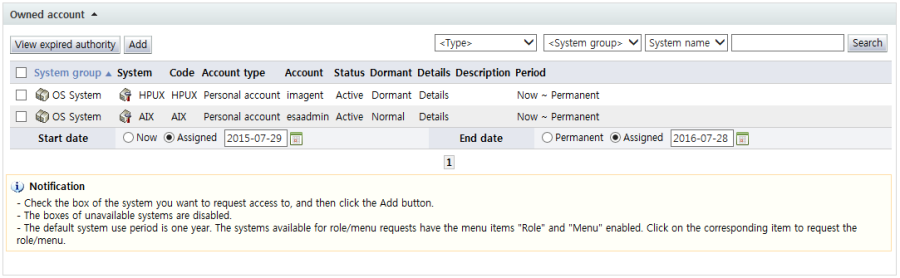
<System owned authorities>
Each of the items is described below.
Checkbox: Select the checkbox and click the "Add" button to select the system as an authority whose revocation or extension is requested.
In the case of authority extension, the start date and end date for the extension request must be designated below the list. (Start date and end date are shown only in the case of extension requests.)
System group: Displays the system group
System: Displays the system name.
Code: Displays the system code
Details: Brings up a screen for viewing detailed info for a personal account
Role: If there are roles assigned to a personal account, the "Role"item is enabled. When the "Role" item is selected, a screen where the roles that the account has in the system can be viewed is brought up.
Description: Displays a description of the system
Period: Displays the usage period for the system (resource) authority
The buttons for the owned authorities are explained below.
View expired authority: Brings up a screen where all expired authorities can be viewed at once
Add: Select the checkbox of the system item to be extended or revoked and click the "Add" button to add as an "Authority to request".
Search: Searches items corresponding to the conditions
The following is the screen brought up when detailed account info is selected:
<Detailed account info>
Under system owned authorities, two major items are displayed.
System info: Displays detailed info for the system account
Resource: Displays the system name and type
Account type: Indicates the account type, i.e., personal or shared
Account: Displays the name of the account used
Status: Displays the status of the account
Dormant: Indicates whether the account is normal or dormant
Period: The account usage period is displayed.
Request date: Displays the date & time of account use request
Date approved: Displays the date & time of account use approval
Network control: Displayed only if the system is synced with network access control. In network control, the IP and protocol that can be used when accessing the system are displayed.
The following is the screen brought up when enabled role items in the account are selected: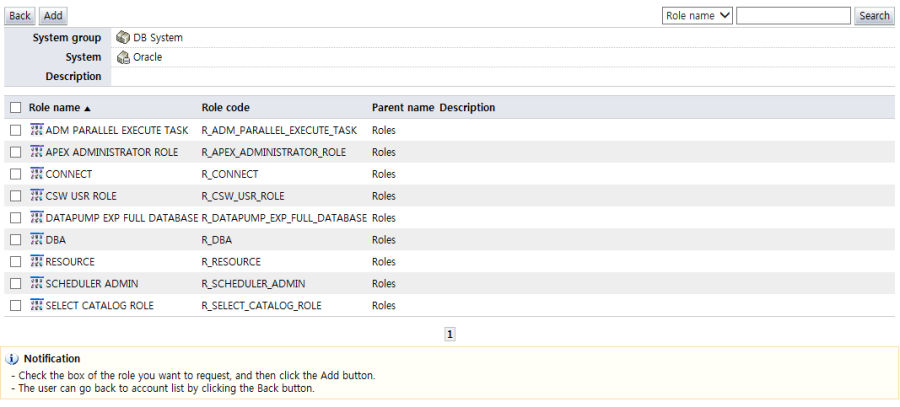
<Role list>
In the role list, the roles owned by the account are displayed. The revocation or extension of these roles can be requested.
Each of the items is described below.
Checkbox: Select the checkbox of the role to be extended or revoked and click the "Add" button to add as an authority to be requested. In the case of authority extension, the start date and end date for the extension request must be designated below the list. (Start date and end date are shown only in the case of extension requests.)
Role name: Displays the name of the assigned role
Role code: Displays the assigned role code
Parent name: Displays the parent name of the assigned role. The parent name is shown only when the role structure of the system is hierarchical.
Set: Indicates whether the assigned role is allowed or deny authority. If set as a deny authority, the authority cannot be used.
Period: Displays the usage period of the assigned role
Request date: Displays the date & time the role was assigned
Date approved: Displays the date & time the assigned role was approved
Description: Displays a description of the role
When the "View expired authority" button is clicked in the owned authorities list, the following screen for viewing expired authorities is brought up:
<View expired authority>
In View expired authority, expired accounts and roles can be viewed at once. Select the checkbox of an item and click the "Add" button to add the item as an "Authority to request".
Each of the items is described below.
Checkbox: Select the checkbox and click the "Add" button to select the authority as an authority whose revocation or extension is requested. In the case of authority extension, the start date and end date for the extension request must be designated below the list. (Start date and end date are shown only in the case of extension requests.)
Type: Displays the authority type
 : OS
: OS-
: DBMS
-
: Network equipment
-
: Role
System group: Displays the system group of the system that owns the expired authorities.
System: Displays the name of the system that owns the expired authority.
Name of authority: Displays the name of the expired authority. If the expired authority is a system, the system name is displayed.
Code: Displays the code of the expired authority
Parent name: If the expired authority is a role, the parent name is displayed.
Account type: Displays the type of the account
Account: Displays the account name If the expired authority is a role, the name of the account assigned the role is displayed.
Usage period: Displays the usage period of the authority
Request date: Displays the date & time the authority was requested.
Date approved: Displays the date & time the authority was approved.
Description: Displays a description of the authority