4.1.2.46 Delegated personal system account extension request
When Delegated Personal System Account Extension Request is selected in the request list, the following screen is brought up: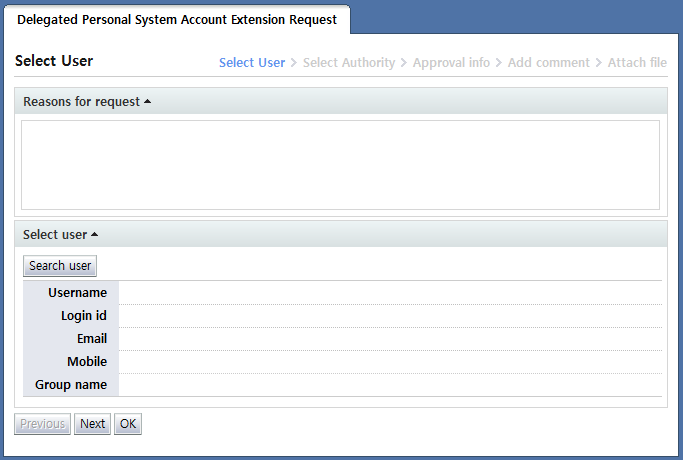
The Enter info screen for the delegated personal system account extension request is divided into two steps.
In the first step, the user for whom system account extension is requested is selected.
In the second "Select account" step, the account for which extension is requested is selected among the personal system accounts of the requester.
In "Select user" of the user selection step, the users to be requested are selected. To select a user, click the "Search user" button and select the users on the user popup screen that appears.
The following is the user selection popup screen: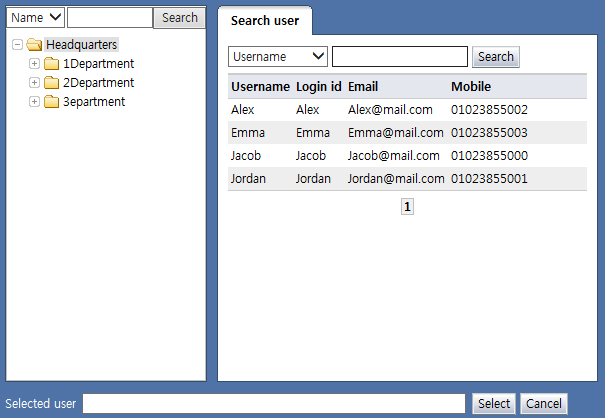
<User selection popup>
When the user name or login ID of a user is clicked on the popup, the user is displayed in "Selected user" on the bottom of the popup.
Verify the user and click the "Select" button to select the user for whom the delegated request will be made. Only 1 user can be selected. Multiple user selection is not possible.
The selected user is displayed as in the following: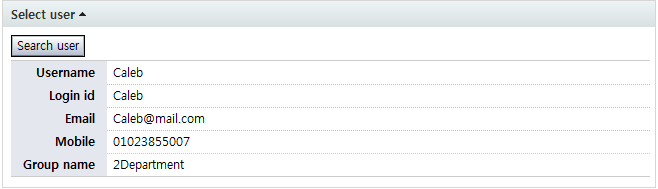
<Select user>
After selecting the user, click the "Next" button to select the accounts for which extension is requested among the accounts owned by the user.
The following figure shows the screen brought up when the "Next" button is clicked: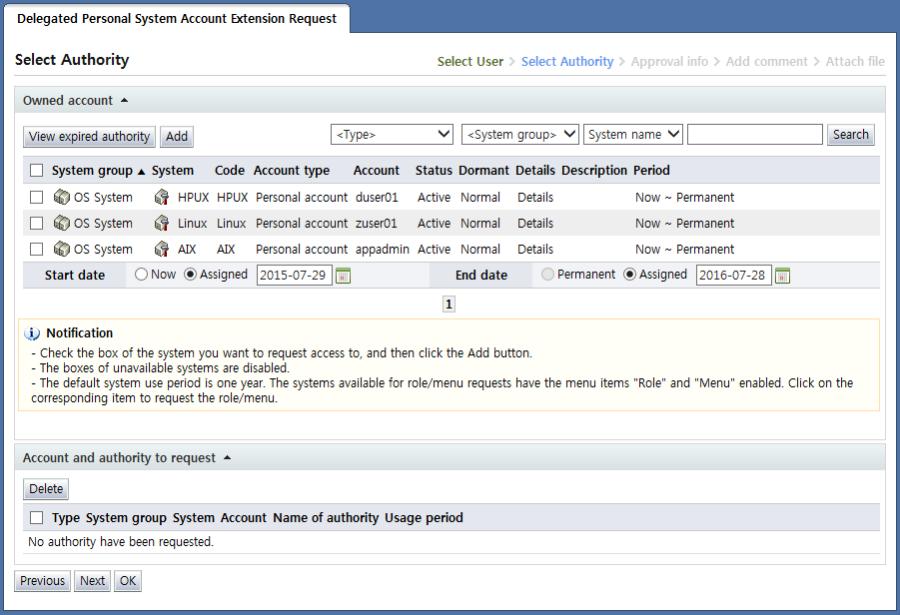
<Screen for the selection of the account for which extension is requested>
In the "Owned account" area, a list of system accounts owned by the user selected in the previous step is shown.
The following step is identical to
User's personal system account extension request
; refer to the above for more info.