4.1.2.9 _Shared account use request popup_
When the "Add" button is clicked in the shared account use request form, the following screen pops up: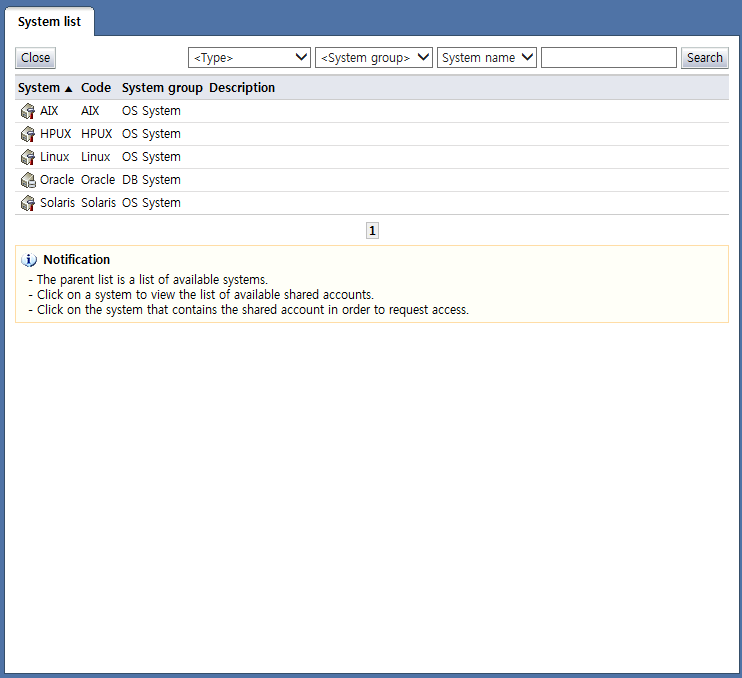
<Shared account use request popup>
On this popup screen, only systems (OS, DBMS, network equipment) that the requester can request are shown in the list.
The items of the system to be requested can be clicked to add as an account to be requested.
Each of the items is described below.
System: Displays the system name. The icons denote system types.
 : OS
: OS-
: DBMS
-
: Network equipment
Code: Displays the system code
System group: The system group where the system belongs is displayed.
Description: A description of the system is displayed.
The buttons are explained below.
Close: Closes the popup screen
Search: Shows the authorities that can be requested with the selected search conditions
The following is the screen shown when a system item to be requested is selected from the requestable systems list: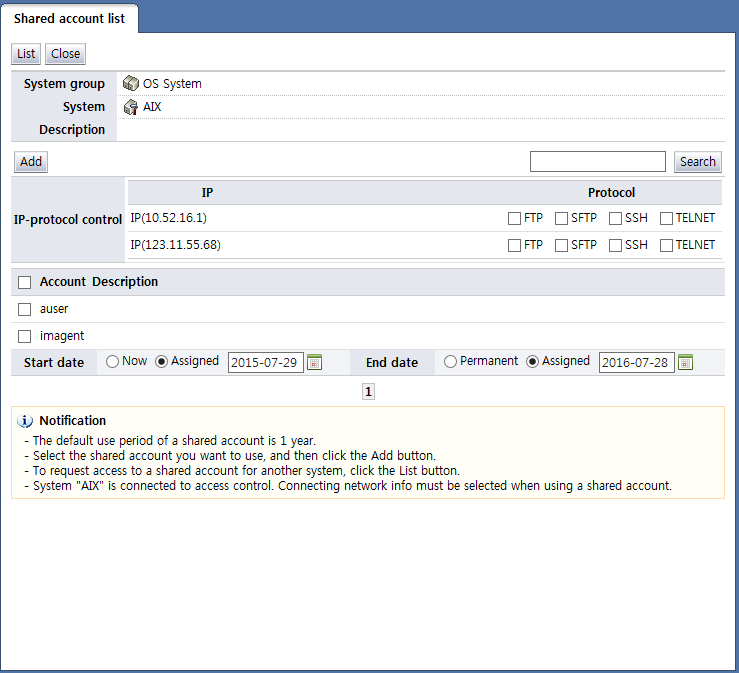
<Shared account list>
Here, a list of requestable accounts registered as managed accounts for the system is displayed.
Select the checkbox of the account item to be requested, set the usage period, and click the "Add" button to add as an "Account to request".
If the system is synced with access control, network info to be used when the account to be requested is used must be entered additionally in accordance with the access control policy.
On the screen above, "IP-protocol control" is shown when the system syncs with access control that performs IP-protocol control.
In the case of a delegated shared system account request (multiple) form, protocol control is displayed.
If synced access control performs IP control only, the following is displayed: In the case of a delegated shared system account request (multiple) form, this is not displayed.
If synced access control performs protocol control only, the following is displayed:
If no access control is synced, the Enter network screen is not displayed.
The buttons on the screen are described below.
List: Brings up the system list
Close: Closes the popup screen
Add: Adds an item whose checkbox has been selected as an "Account to request".
Search: Searches for account using the entered values