4.2.1 Delegate role
Role delegation is used to delegate a particular role owned by a user to another user for a specified period of time. When Delegate role is clicked in delegation management, the following screen is brought up: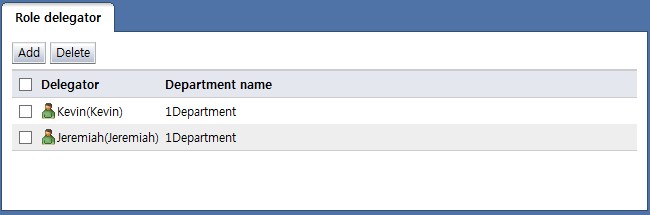
<Role delegator list>
A list of users who have delegated roles to other users is displayed as shown above. The items in the role delegator list are described below.
Select: Select the checkbox and click the "Delete" button to delete all roles delegated to a role delegator.
Delegator: Displays the user name and login ID of the user who delegated a role. When the name and login ID of a user are selected, a page on the details of roles delegated to that user is brought up.
Department name: Displays the name of the department where a user to which a role has been delegated is a member
By clicking the buttons on top of the role delegator page, the following tasks can be performed:
Add: Brings up a page to add role delegators
Delete: Select the checkbox and click the "Delete" button to delete all roles delegated to a delegator.
Delegating roles
To delegate a role, click the "Add" button in the role delegator list. This brings up the following screen: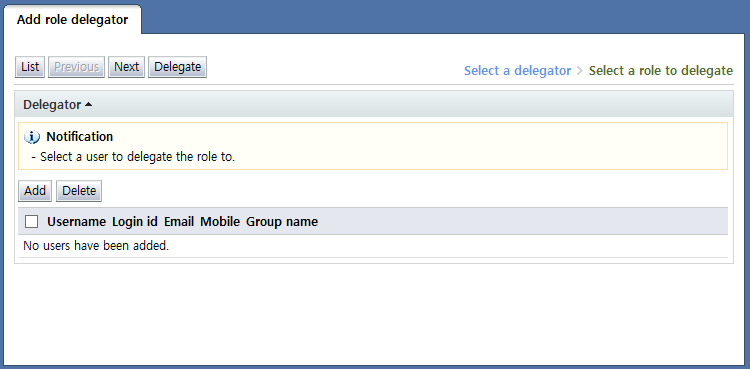
<Add role delegator>
A role delegator is added in the following order:
Click the "Add" button to bring up a search popup where the user to whom the role will be delegated can be searched. Select the user to whom the role will be delegated on this popup. Multiple users can be selected.
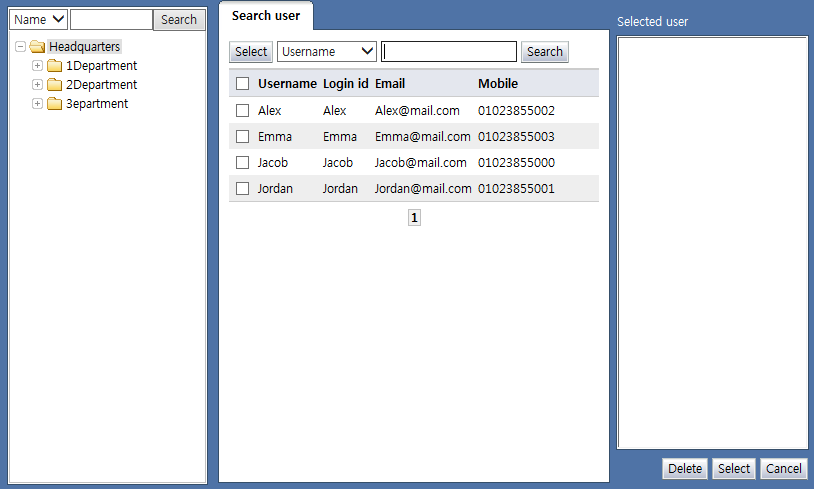
<User popup screen>
Select the user to whom the role will be delegated and click the "Next" button to bring up the following screen:
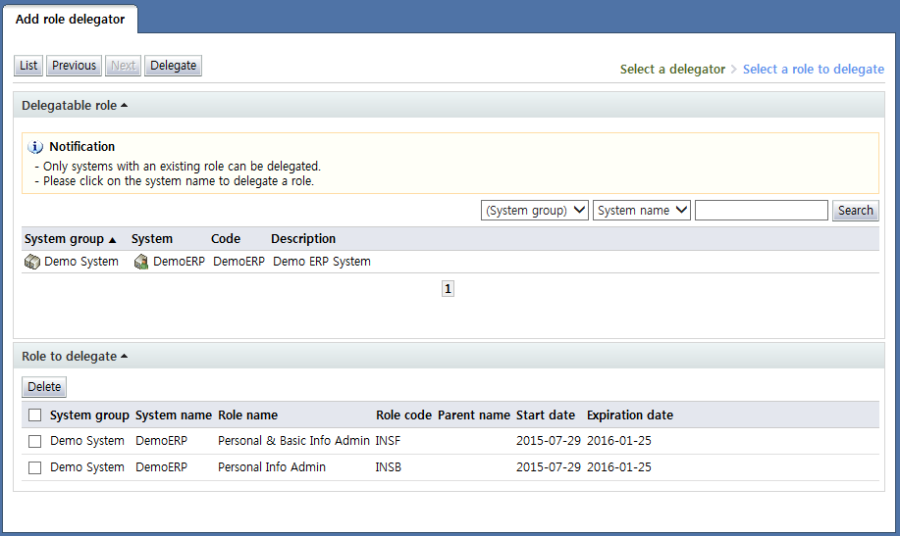
<Systems where delegable roles can be selected>
On the screen above, a list of systems where delegable roles exist is shown. On this screen, select the name or code of the system for role delegation. This brings up the roles that the user owns in the system as shown below.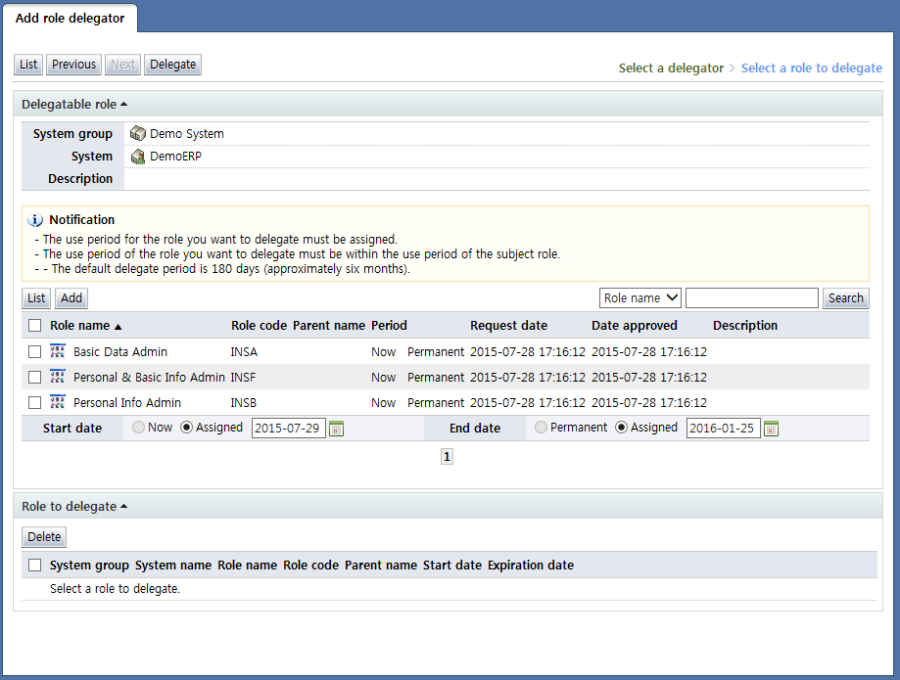
<List of delegable roles>
On the screen above, enter the role to be delegated and the usage period. When the "Add" button is clicked, the role to be delegated is displayed in the "Role to delegate" area as shown below.

<Select a role to delegate>
To delete a role among the roles to delegate, check the selection box and click the "Delete" button. This removes the item from the "Role to delegate".
After selecting all authorities to delegate, click the "Delegate" button to delegate the roles.
View the details of the roles delegated to the role delegator
To view info on the roles delegated to a role delegator, select the name of the delegator in the role delegator list. This brings up the following screen: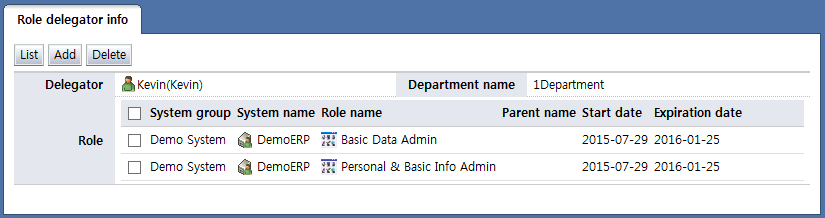
<Role delegator info>
A list of roles delegated to a delegator can be viewed. To disable a particular role among the delegated roles, select the checkbox for the role and click the "Delete" button. This will delete the delegated role. To delegate an additional role to the delegator, click the "Add" button on top. This brings up the following screen: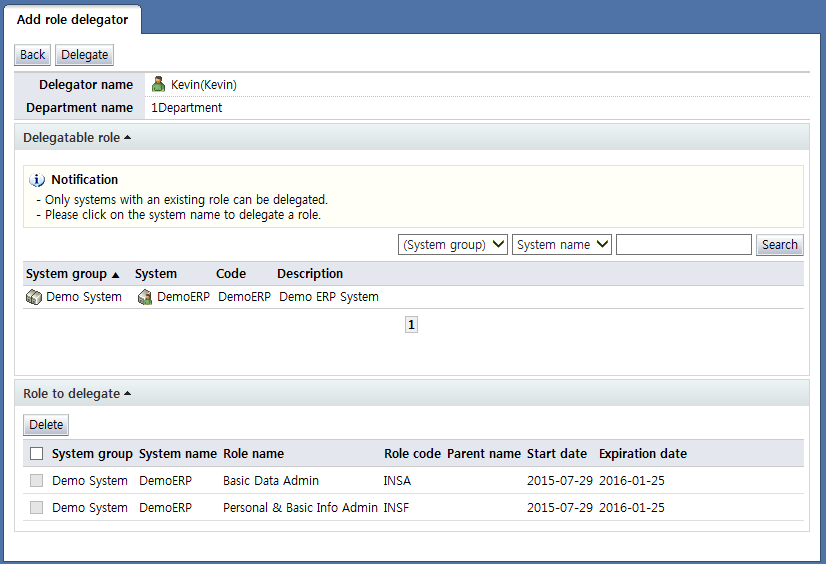
On the screen above, select the system name and the role to be delegated as when adding roles to delegate. This way, additional roles can be delegated to a delegator.