4.3.3 Request Documents
The Request Documents provides a function of viewing all documents requested by a user. In Approval management, click Request Documents to display the following screen: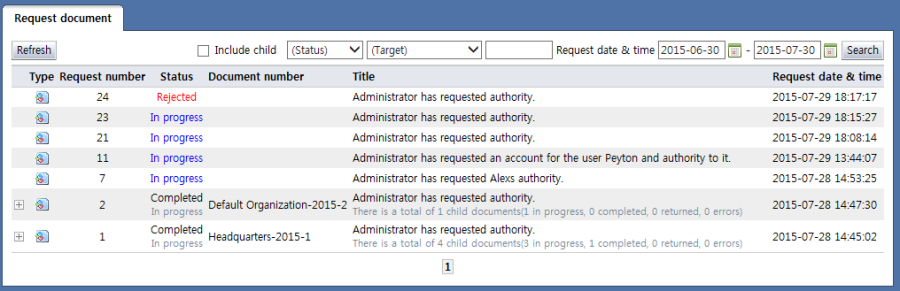
<Request list>
On the list page of the request documents, the current status of all requested documents can be viewed. The items in the requests in progress list are described below.
Parent/Child: Displays the parent/child documents. When the
 button is clicked, the child documents of a document are displayed as follows:

Type: Displays the document type.
-
: Requested documents (default document)
-
: Sent and received documents
Status: Displays the status of the document. If a child document exists, whether the document is in progress or has been completed is indicated beneath the status of the child document.
In progress: Search for documents whose approval is in progress.
Returned: Search returned documents.
Completed: Search documents whose approval has been completed.
Cancel: Search canceled documents.
Error: Search documents wherein an error has occurred during approval.
Document number: Displays the document number By default, a document number is assigned and displayed automatically when approval within the requesting department has been completed. When the document number is clicked, the document details page is brought up.
Title: Displays the document title. When the title of a document is clicked, the document details page is brought up. If there are child documents, the number of child documents and the number of documents for each status are displayed.
Request date & time: Displays the request date & time
By clicking the buttons on the top of the view requests in progress list page, the following tasks can be performed:
Refresh: Displays the latest list of requests in progress
Search: Within the designated search range, a search is performed using the value given in search attributes.
Search status
In progress: Search for documents whose approval is in progress.
Returned: Search returned documents.
Completed: Search documents whose approval has been completed.
Cancel: Search canceled documents.
Error: Search documents wherein an error has occurred during approval.
Search target
Title: Search for documents whose title includes a word.
Document number: Search for document numbers that include the search word.
Request date & time: Search for documents requested in the designated period.
If the title or number of a request document is selected, the following screen is brought up, and the document details can be viewed: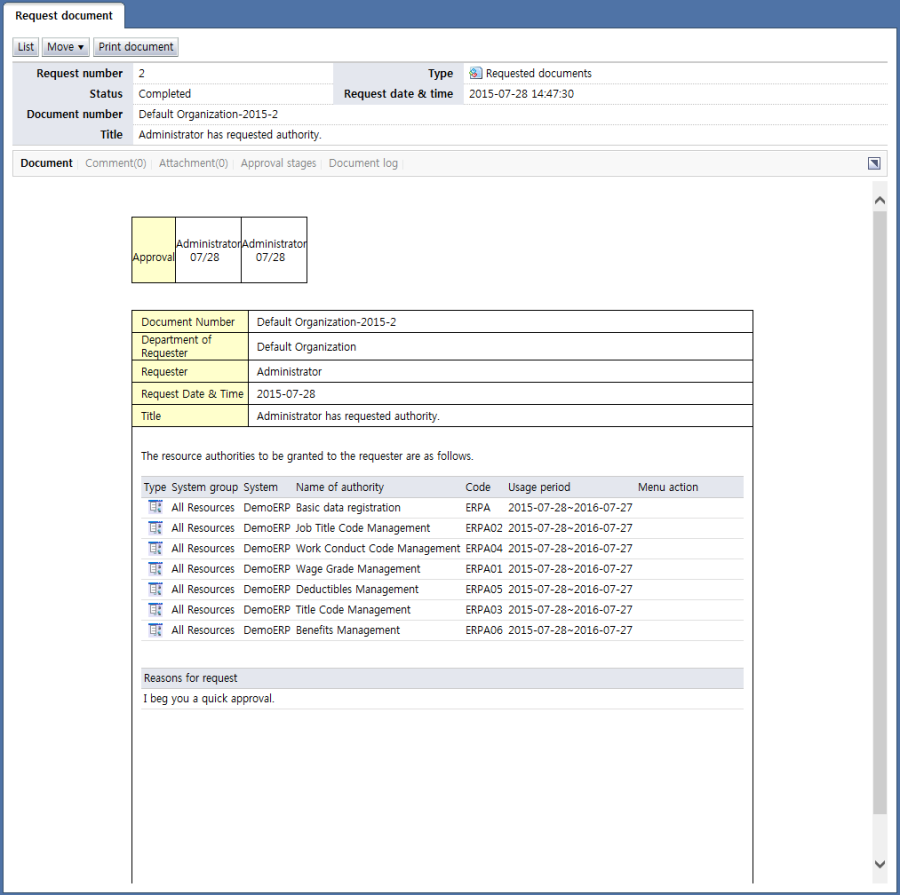
<View request document details>
The attribute items of request document are described below.
Type: Displays the document type
-
: Requested documents (default document)
-
: Sent and received documents
Status: Displays the status of the document.
In progress: Search for documents whose approval is in progress.
Returned: Search returned documents.
Completed: Search documents whose approval has been completed.
Cancel: Search canceled documents.
Error: Search documents wherein an error has occurred during approval.
Request date & time: Displays the request date & time
Document number: Displays the document number
Title: Displays the document title
The menus associated with the document are explained below.
Document: Displays the content of the approval requests
Error details: Displays the details of errors that occurred during approval processing. (The menu is visible only in the case of documents whose status is error.)
Reason for rejection: Displays the reason a document was returned. (The menu is visible only in the case of documents whose status is returned.)
Comment: Displays the comments attached to the document
Attachment: Displays the files attached to the document. When the title of an attachment is selected, the file can be downloaded.
Approval stages: The figure below shows the approval stages screen for a parent document. On the screen for a parent document, approval progress for child documents is also displayed.
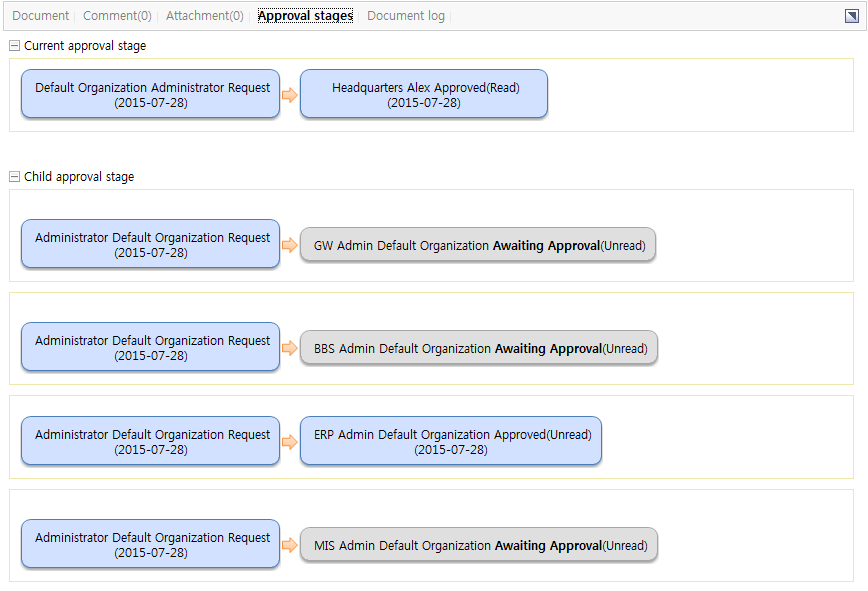
<Parent document approval stages>
On the screen for a child document, approval progress for the parent document is also displayed as shown below. 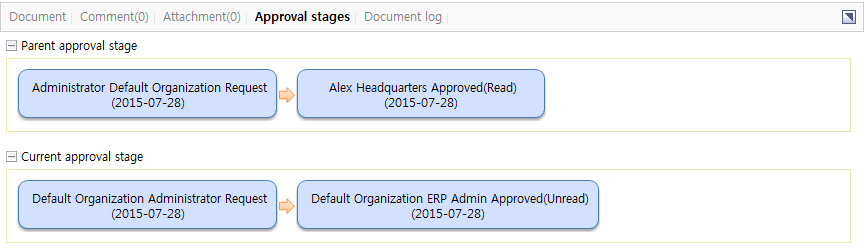
<Child document approval stages>
Document log: Displays the log of the document. Displays the log of the document. In the document log, various history items occurring during document approval are recorded.
By clicking the manage button on top of the approval requests, the following tasks can be performed:
List: Brings up the view approval requests list page
Move: When the "Move" button is clicked, a popup to bring up the child or parent document is displayed. When the document to be moved is selected, the View details screen for the document is brought up.
<Move document>Print document: The content of the approval requests is printed.