4.3.1.2 References
In References, the references for the user to process are displayed. When Approval management > Approval processing > References is clicked, the following screen is brought up:
<References list>
The view references page is a document box where Ccs can refer to the document details. Ccs can OK requested documents to indicate that they have referred to the documents.
Each of the items is described below.
Type: Displays the document type
 : Requested documents (default document)
-
: Sent and received documents
Request number: Displays the request number
Status: Displays the status of the document. Documents can have the following statuses:
Standby: Document is on standby for approval
Returned: A requested document has been returned
Hold: The user has held approval
Re-request: A returned document that has been re-requested
Document number: Displays the document number When the document number is clicked, the document details page is brought up.
Title: Displays the document title. When the title of a document is clicked, the document details page is brought up. The icon in front of the document title indicates whether the document has been viewed.
-
: Not read
-
: Read
Requester info: Displays requester info
Request date & time: Displays the request date & time
Received date & time: Displays the date & time the document was received
By clicking the buttons on the top of the view references list page, the following tasks can be performed:
OK: OK's the selected documents
Search: Within the designated search range, the value given in search attributes is used to search approval management.
Search status
Standby: Search for documents requiring approval.
Returned: Search for documents that a user has requested but which have been returned.
Hold: Search for documents that a user has held.
Re-request: Search, among documents that a user has requested but which have been returned, for re-request documents.
Search target
Title: Search for documents whose title includes a word.
Requester: Search for requester names that include the search word.
Document number: Search for document numbers that include the search word.
Request number: Search for request numbers that include the search word.
Search date: Search for documents requested in the designated period.
If the title or document number of a reference is selected, the following screen is brought up, and the document details can be viewed: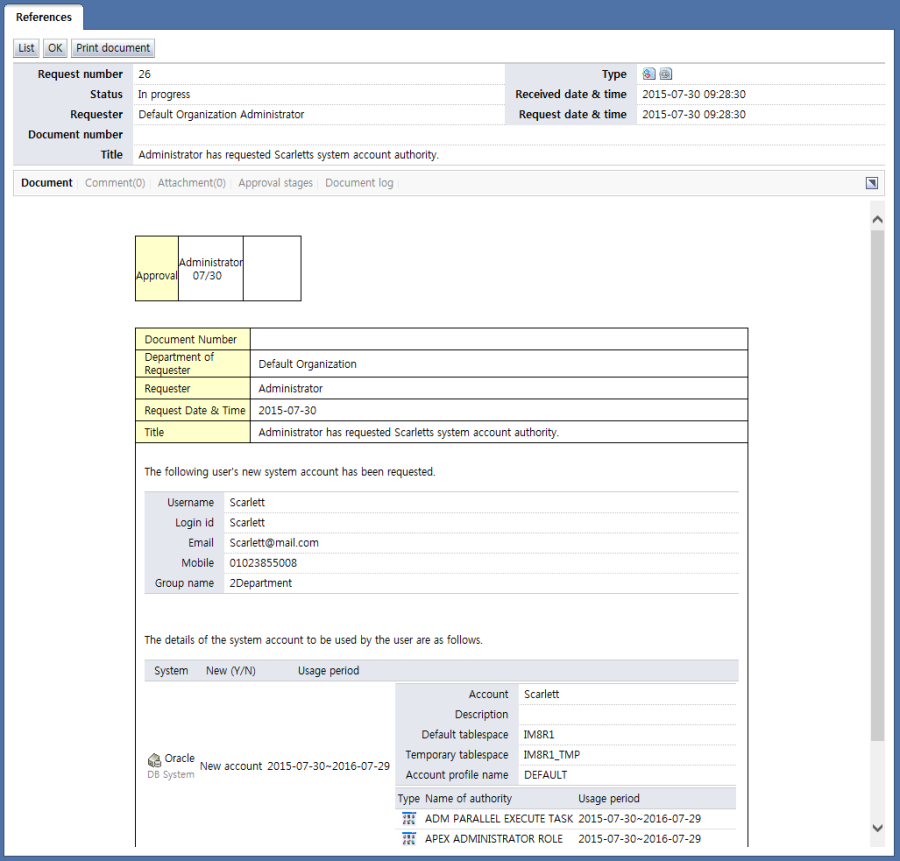
<References>
The attribute items of approval requests are described below.
Request number: Displays the request number
Type: Displays the document type.
-
: Requested documents (default document)
-
: Sent and received documents
-
: References
-
: Normal documents
Status: Displays the status of the document. Documents can have the following statuses:
Standby: Search for documents requiring approval.
Returned: Search for documents that a user has requested but which have been returned.
Hold: Search for documents that a user has held.
Re-request: Search, among documents that a user has requested but which have been returned, for re-request documents.
Received date & time: Displays the date the approval request was received
Requester: Displays requester info
Request date & time: Displays the request date & time
Document number: Displays the document number
Title: Displays the document title
The menus associated with the document are explained below.
Document: Displays the content of the approval requests
Comment: Displays the comments attached to the document
worddav35235f14a1cb848b566060a61c537947.png
<Comments list>
Attachment: Displays the files attached to the document. When the title of an attachment is selected, the file can be downloaded.
<Attachments list>Approval stages: Displays the status of the current approval stage in progress for the document

<Approval stage>Document log: Displays the log of the document
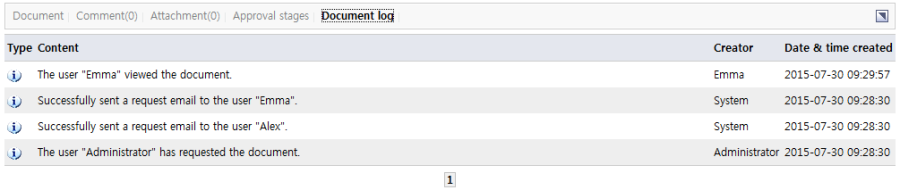
<Document log>
By clicking the manage button on top of the approval requests, the following tasks can be performed:
List: Brings up the view approval requests list page
OK: OK's the document