4.1.4 View authority
In personal info management - view authority, the application and system authorities owned by a logged-in user can be viewed. Likewise, info on the system (OS/DB/network) shared accounts managed by a user and the user's network info can be viewed.
Application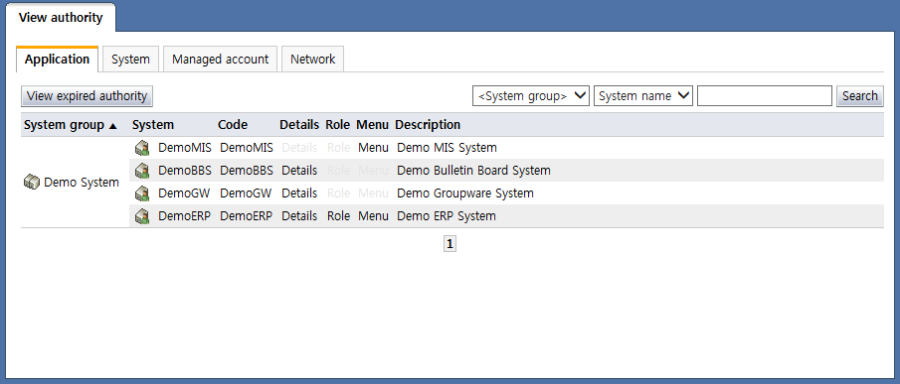
<View application authorities>
On the view authority screen, a list of systems that the user currently has is displayed. In view authorities, application authorities and system (OS/DB/network equipment) authorities are displayed separately. Each of the items is described below.
System group: Displays the system group name of the group system where authorities are owned
System: Displays the name of the system where authorities are owned
Code: Displays the code of the system where authorities are owned
Details: If the user has authorities to the system itself, the "Details" item is enabled. If the "Details" item is selected, the detailed system authority info screen is brought up.
Role: If role authorities are owned for the system, the "Role" item is enabled. When the "Role" item is selected, the owned role list page is brought up.
Menu: If menu authorities are owned for the system, the "Menu" item is enabled. When the "Menu" item is selected, the owned menu list page is brought up.
Description: Displays a system description
Application - Details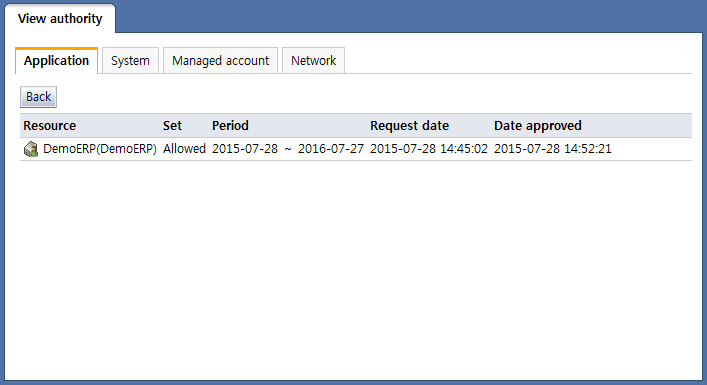
<Application - Details>
When the application - details item is selected, detailed info on the authorities of the application can be viewed. The application - details item is enabled only when authorities to the application resource itself exist.
Application - Role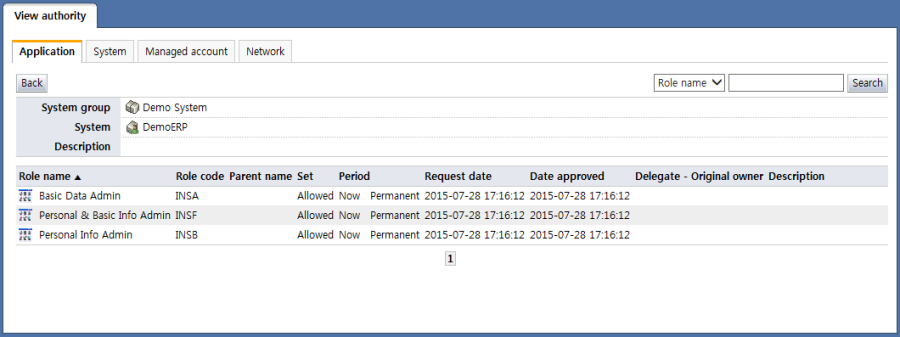
<Application role list>
When the application - role item is selected, a list of roles assigned to the user in the application can be viewed. The items in the application role list are described below.
Role name: Displays the name of the assigned role
Rold code: Displays the assigned role code
Parent name: Displays the parent name of the assigned role. The parent name is shown only when the role structure of the application is hierarchical.
Set: Indicates whether the assigned role is allowed or deny authority. If set as a deny authority, the authority cannot be used.
Period: Displays the usage period of the assigned role
Request date: Displays the date & time the role was assigned
Date approved: Displays the date & time the assigned role was approved
Delegate - Original owner: In case an assigned role is a delegated role, info on the original owner is displayed.
Description: Displays a description of the role
Application - Menu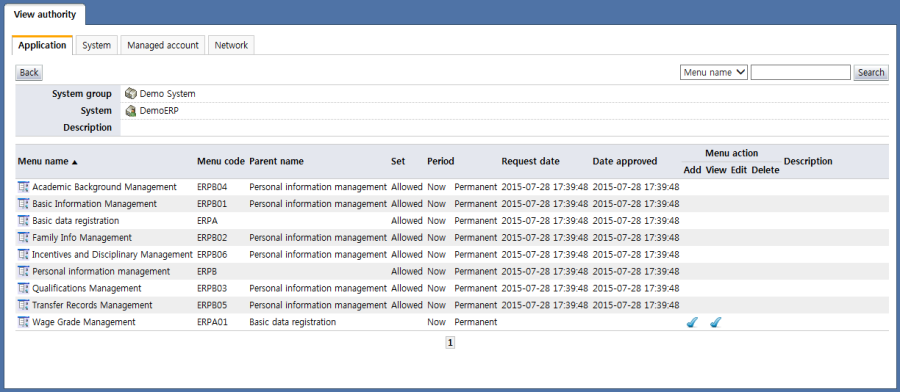
<Application menu list>
When the application - menu item is selected, a list of menus assigned to the user in the application can be viewed. The items in the application role list are described below.
Menu name: Displays the name of the assigned menu
Menu code: Displays the code of the assigned menu
Parent name: Displays the parent name of the assigned menu. The parent name is shown only when the menu structure of the application is hierarchical.
Set: Indicates whether the assigned menu is allowed or deny authority. If set as a deny authority, the authority cannot be used.
Period: Displays the usage period of the assigned menu
Request date: Displays the time & date of assignment of the menu
Date approved: Displays the time & date of approval of the assigned menu.
Menu action: In menu actions, if the menu has add/read/edit/delete attributes (changeable), whether authorities for add/read/edit/delete are assigned is indicated. If add/read/edit/delete authorities exist, they are checked. When the mouse cursor is placed above the check marks, the details screen is brought up as in the following:
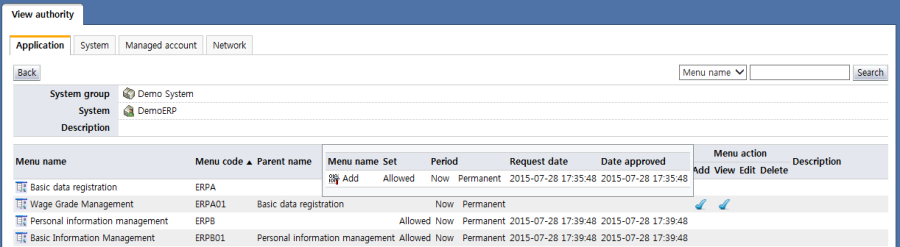
<Detailed menu action info>Description: Displays a description of the menu
System
In system authorities, personal account info for OS/DB/network info is displayed.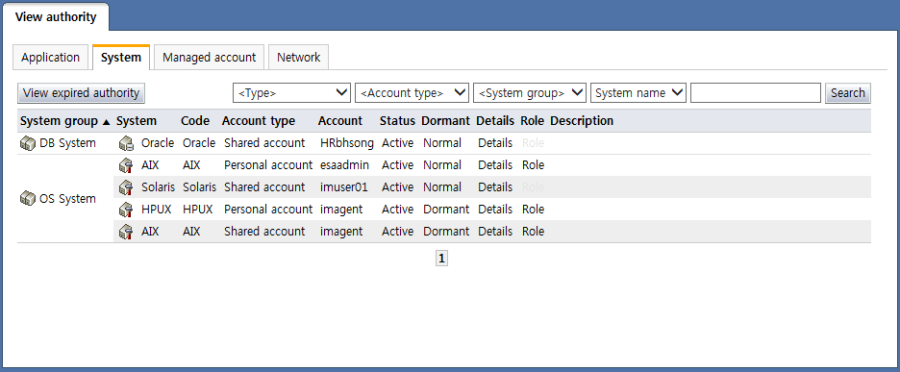
<System account list>
System group: Displays the system group name of the group system where authorities are owned
System: Displays the name of the system where authorities are owned
Code: Displays the code of the system where authorities are owned
Account type: Displays the type of the account There are two types of account.
Personal account: An account that only an individual can use
Shared account: An account used jointly by multiple persons
Account: Displays the account name used in the system
Status: Displays the enabled or disabled state of the account
Dormant: Indicates the normal/dormant status of the account
Details: When the "Details" item for the system is selected, the detailed system authorities page is brought up.
Role: If there are roles being used by the system account, "Role" is enabled. When "Role" is selected, a list of roles used by the account is brought up.
Description: Displays a system description
System - Details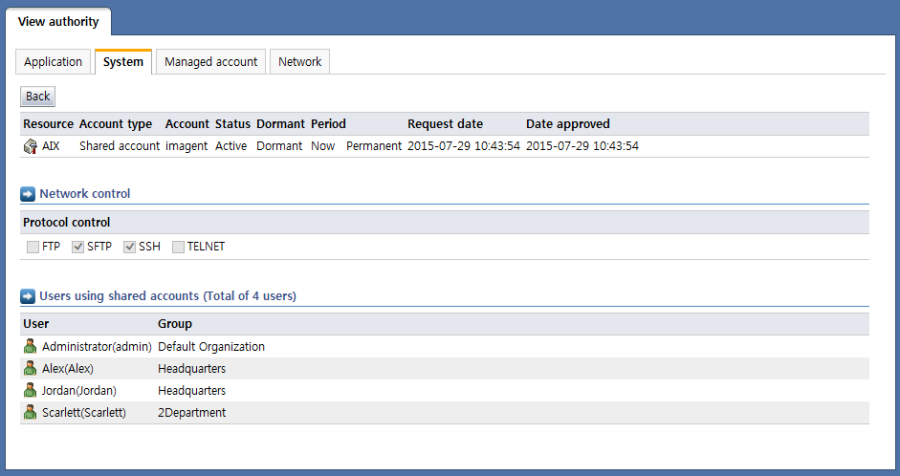
<System details>
When the system - details item is selected, detailed info on the authorities of the system can be viewed. Under system details, three major items are displayed.
System info: Displays detailed info for the system account
Resource: Displays the system name and type
Account type: Indicates the account type, i.e., personal or shared
Account: Displays the name of the account used
Status: Displays the status of the account
Dormant: Indicates whether the account is normal or dormant
Period: Displays the account usage period
Request date: Displays the date & time of account use request
Date approved: Displays the date & time of account use approval
Network control: Displayed only if the system is synced with network access control. In network control, the IP and protocol that can be used when accessing the system are displayed.
Users using shared accounts: If the account is a shared account, info on the users using the account is displayed.
System - Role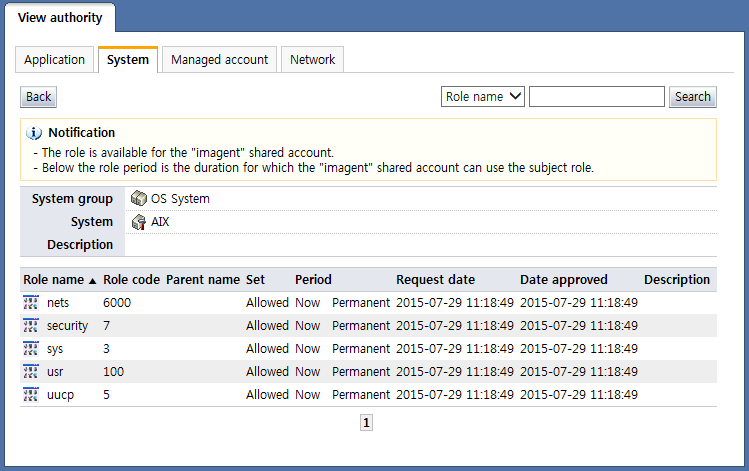
<List of roles owned by the system account>
When the system roles item is selected, a list of roles assigned to the system account can be viewed. The items in the system role list are described below.
Role name: Displays the name of the assigned role
Rold code: Displays the assigned role code
Parent name: Displays the parent name of the assigned role. The parent name is shown only when the role structure of the system is hierarchical.
Set: Indicates whether the assigned role is allowed or deny authority. If set as a deny authority, the authority cannot be used.
Period: Displays the usage period of the assigned role
Request date: Displays the date & time the role was assigned
Date approved: Displays the date & time the assigned role was approved
Description: Displays a description of the role
View expired authority
When the "View expired authority" button is clicked, the following View expired authority page is brought up: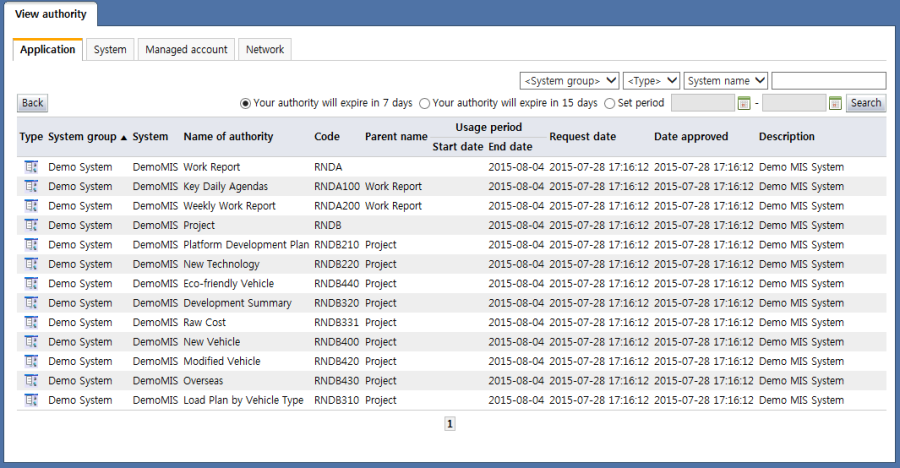
<View expired authority>
On the expired authorities page, authorities whose terms are expired can be viewed at once regardless of authority type. Each of the items is described below.
Type: Displays the authority type
 : System authority
 : Menu authority
: Role authority
: Menu authority
: Role authority
System group: Displays the system group name of the group system where authorities are owned
System: Displays the name of the system where authorities are owned
Name of authority: Displays the name of authority. If the authority is a system authority, then the system is displayed.
Code: The authority code is displayed.
Parent name: Displays the parent name of the role and menu
Usage period: Displays the start date and end date of the authority
Request date: Displays the date & time the authority was requested
Date approved: Displays the authority approval date & time
Description: Displays a description of the authority
Managed account
If the Managed account tab is selected, the following list of shared system accounts managed by the user is displayed: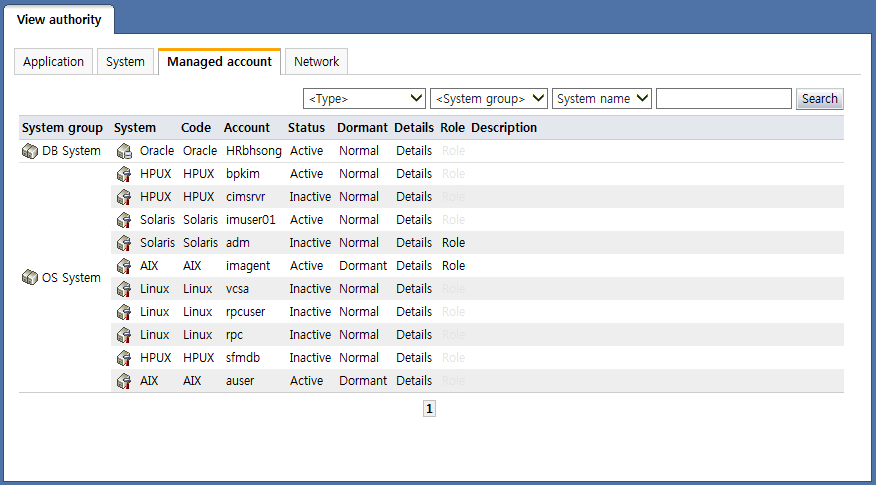
<List of shared system accounts managed by the user>
For a description of system managed accounts, refer to the contents of the "System" above.
Network
When the Network tab is selected, info on the networks owned by the user is displayed as in the following: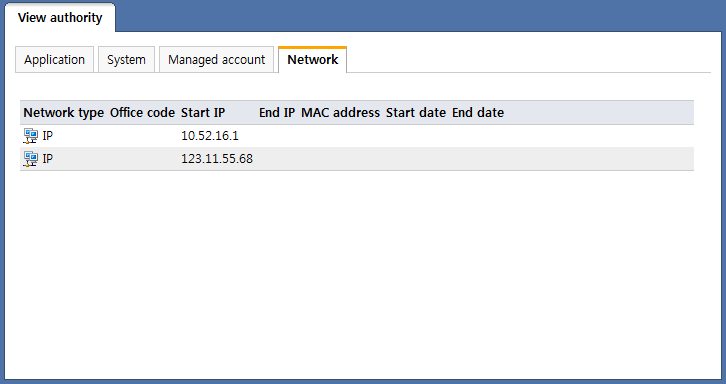
Each of the items is described below.
Network type: Displays the network type
Office code: Displays the code of the office where the network info is being used. This is used when each office has different network info.
Start IP: Sets the network start IP. When IP ranges are not managed, the IP assigned to the user is displayed.
End IP: Sets the network end IP
MAC address: Displays the MAC address of the equipment using the assigned IP
Start date: Sets the start date when the network info can be used
End date: Sets the end date or the date when the network info expires