4.1.2.25 Delegated shared system account use request (single)
When Delegated Shared System Account Use Request (Single) is selected in the request list, the following screen is brought up: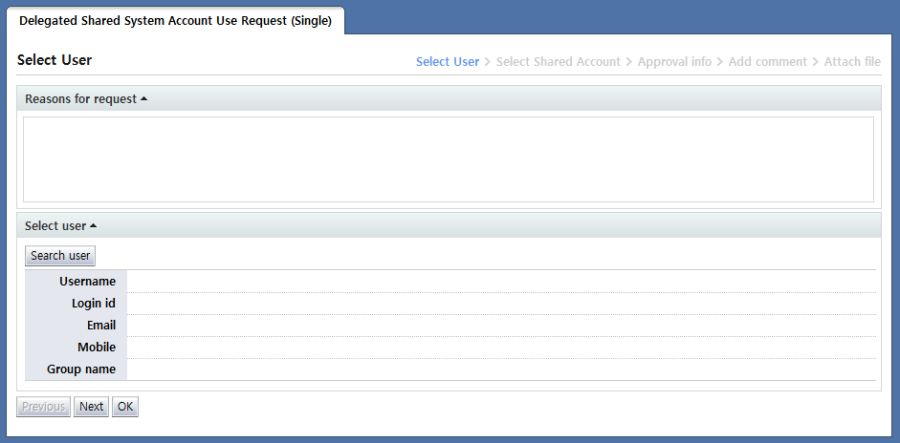
<Delegated shared system account use request>
Delegated shared system account use request (single) is a form wherein the use of OS, DBMS, or network equipment accounts registered as managed accounts by another user for a certain period is requested.
Accounts registered as managed accounts and used for a certain period together with other users are called shared accounts.
In this request, only one user can be requested as a proxy.
The Enter info screen for the delegated shared system account use request (single) is divided into two steps. In the first step, the user who will use the account is selected. In the second step, the account to be used by the selected user is selected.
In "Select user" of the user selection step, the users to be requested are selected. To select a user, click the "Search user" button and select the users on the user popup screen that appears.
The following is the user selection popup screen: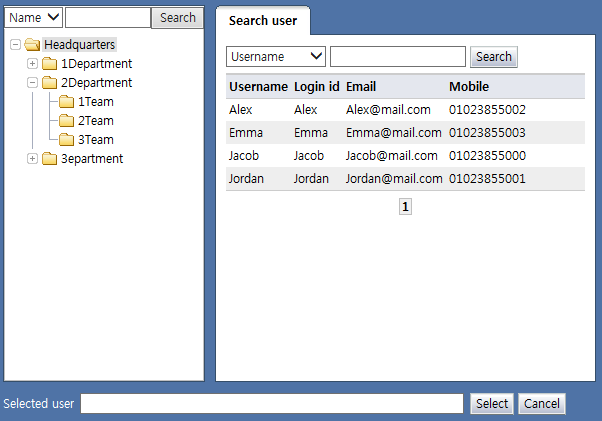
<User selection popup>
When the user name or login ID of a user is clicked on the popup, the user is displayed in "Selected user" on the bottom of the popup.
Verify the user and click the "Select" button to select the user for whom the delegated request will be made. Only 1 user can be selected. Multiple user selection is not possible.
The selected user is displayed as in the following: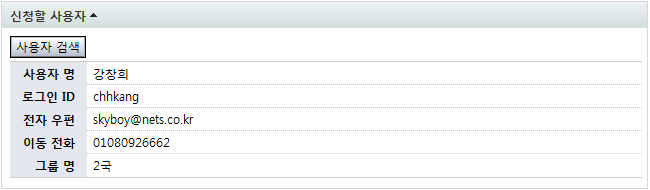
<Select user>
After selecting the user, click the "Next" button to select the user's authorities to be revoked.
The following figure shows the screen brought up when the "Next" button is clicked: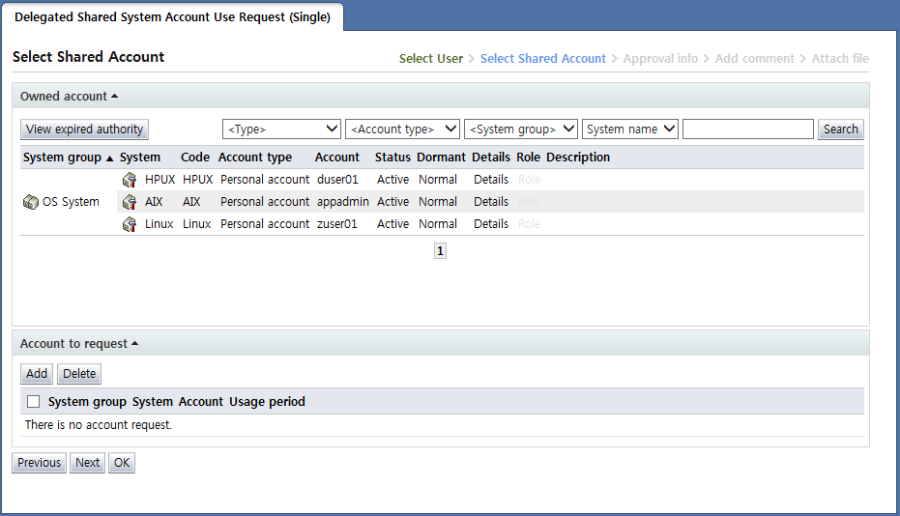
<Select account to request>
On this screen, the accounts owned by the user selected in Step 1 are shown in the "Owned account" area. For a detailed explanation of "Owned account", refer to
<System owned authorities - Add>
section.
In "Account to request", add accounts whose use is requested for the user selected in Step 1. To add, click the "Add" button on the popup that appears.
For a detailed explanation of the popup, refer to
<Shared account use request popup>
.
When an account to be requested has been added on the popup screen, the account is shown in Account to request as shown below.
<Account to request>
To delete an account from "Account to request", select the checkbox of the item and click the "Delete" button.
After entering request info, click the "Next" button and enter additional approval info.