4.3.2.1 Received
The Received is a box for handling approval requests received by the receiving department. Access to and processing of documents in a received box are possible if a user belongs to the receiving department.
When Department Documents > Received is clicked, the following screen is brought up: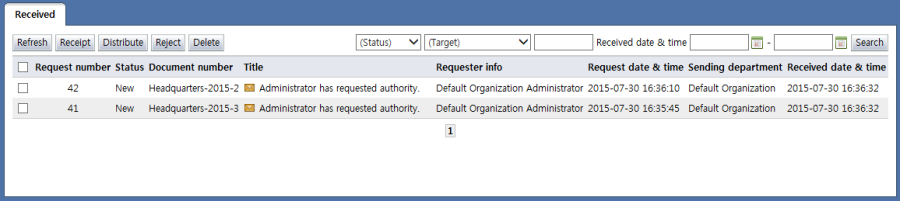
<Received list>
The items in the list of received documents are described below.
Request number: Displays the request number of the document
Status: Displays the status of the document. Documents can have the following statuses:
New: Newly received approval requests
Returned: Received documents that have been returned
Re-request: A returned document that has been re-requested
Document number: Displays the document number When the document number is clicked, the document details page is brought up.
Title: Displays the document title. When the title of a document is clicked, the document details page is brought up.
Requester info: Displays requester info
Request date & time: Displays the request date & time
Sending department: Displays info on the department that sent a document
Received date & time: Displays the date the document was received
By clicking the buttons on the top of the view received page, the following tasks can be performed:
Receipt: Processes the selected documents as received (only documents with the same form can be received at once). When documents are received, the following popup window is shown, and the approval stages for internal processing in the receiving department are assigned:
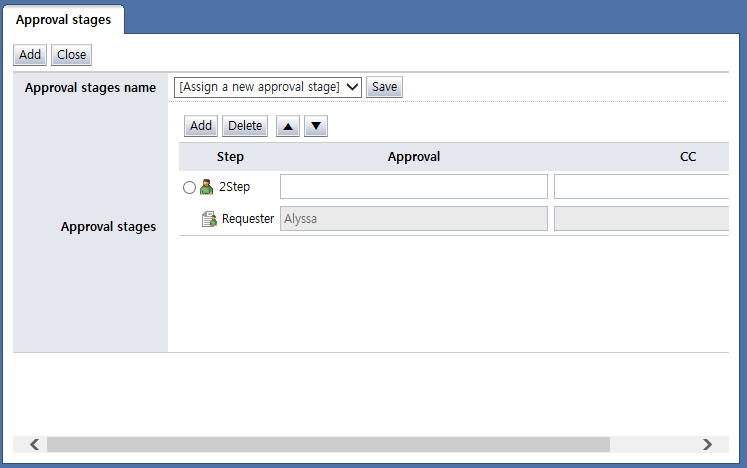
<Assign receiving approval stages>Distribute: Distributes the selected documents. Distribute is used when distributing a document received by the receiving department to other departments for processing. When the "Distribute" button is clicked, the following popup window where the departments to which the documents will be distributed can be selected is shown:
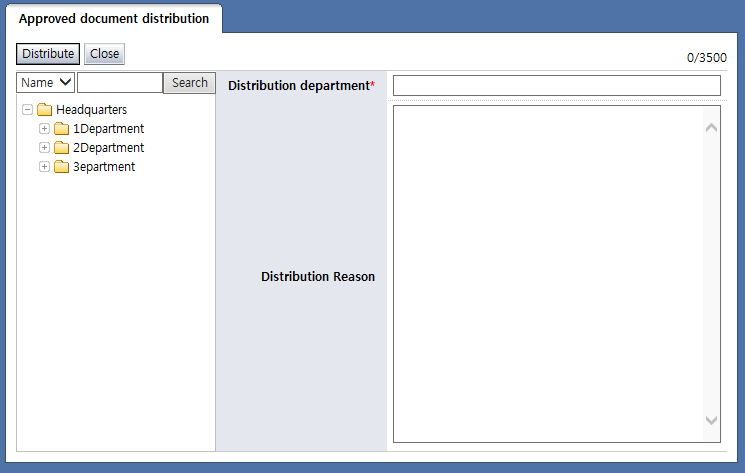
<Distribute>Delete: Deletes a document whose status is returned or re-request
Search: Within the designated search range, a search is performed using the value given in search attributes.
Search status
New: Newly received approval requests
Returned: Received documents that have been returned
Re-request: A returned document that has been re-requested
Search target
Title: Search for documents whose title includes a word.
Requester: Search for requester names that include the search word.
Document number: Search for document numbers that include the search word.
Sending department: Search for sending departments that include the search word.
Request number: Search for request numbers that include the search word.
Request date & time: Search for documents requested in the designated period.
If the title or number of a document is selected, the following screen is brought up, and the document details can be viewed: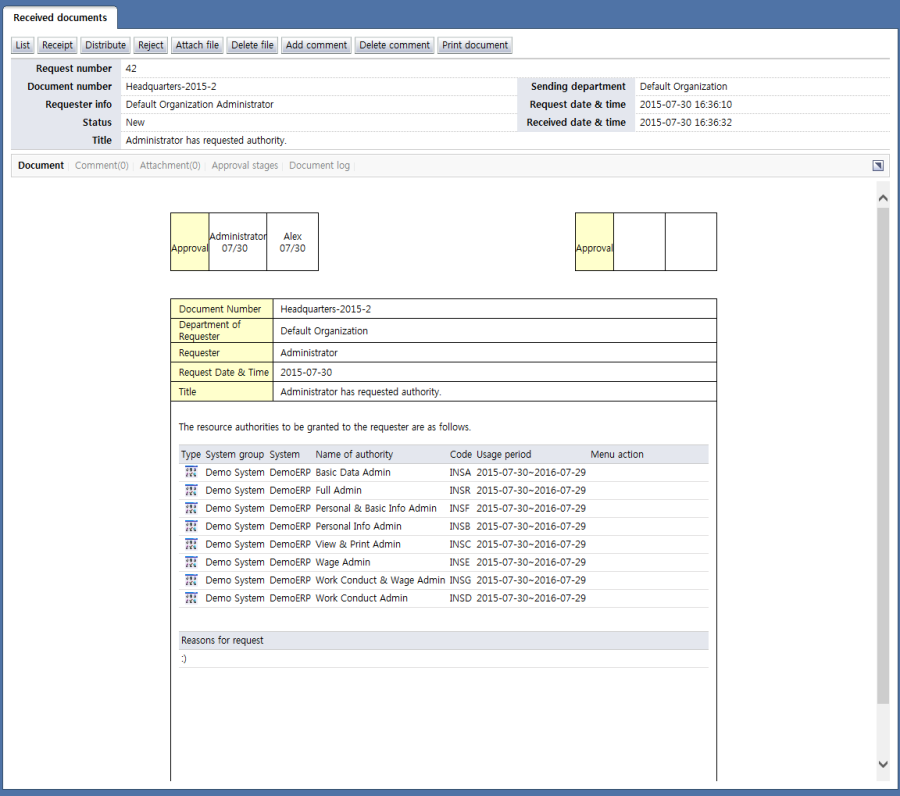
<View received document details>
The attribute items of received documents are described below.
Document number: Displays the document number
Sent number: Displays the department that sent a document
Requester info: Displays requester info
Request date & time: Displays the request date & time
Status: Displays the status of the document. Documents can have the following statuses:
New: Newly received approval requests
Returned: Received documents that have been returned
Re-request: A returned document that has been re-requested
Received date & time: Displays the date the document was received
Title: Displays the document title
The menus associated with the document are explained below.
Document: Displays the content of the approval requests
Comment: Displays the comments attached to the document
Attachment: Displays the files attached to the document. When the title of an attachment is selected, the file can be downloaded.
Approval stages: Displays the status of the current approval stage in progress for the document
Document log: Displays the log of the document
By clicking the manage button on top of the approval requests, the following tasks can be performed:
List: Brings up the view received list page
Receipt: Receives the selected documents. When documents are received, the following popup window is shown, and the approval stages for internal processing in the receiving department are assigned:
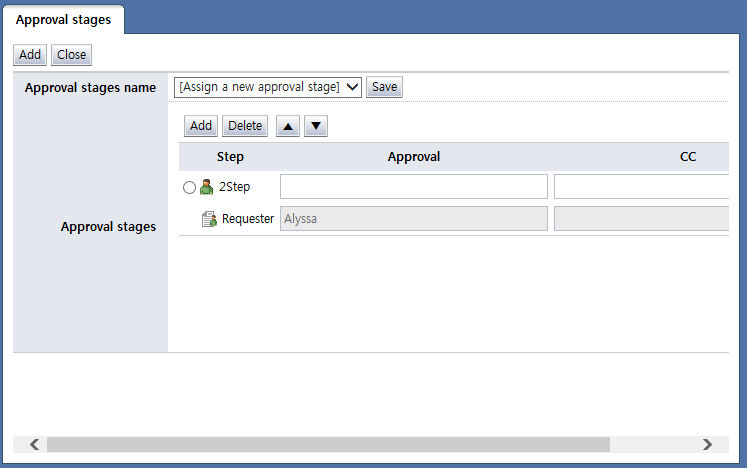
<Assign receiving approval stages>
Distribute: Distributes the selected documents. Distribute is used when distributing a document received by the receiving department to other departments for processing. When the "Distribute" button is clicked, the following popup window where the departments to which the documents will be distributed can be selected is shown:
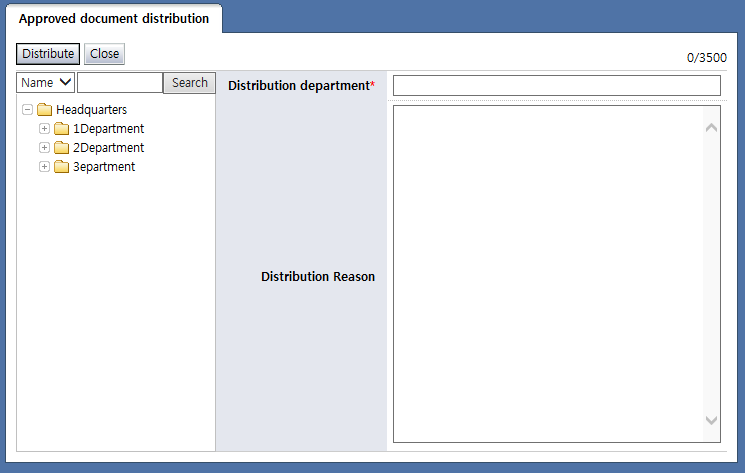
<Distribute>
Reject: Returns a document
Modify document: Brings up a page where received documents can be modified
Attach file: Attaches a file to the current document
Delete file: Deletes a file attached to the current document
Add comment: Adds a comment to the current document
Delete comment: Deletes a comment attached to the current document
Print document: The content of the approval requests is printed.